Whichever seat you take, getting started takes minutes. Here's exactly what to expect, screen by screen.
From craving to doorstep, here's the full flow inside the app.
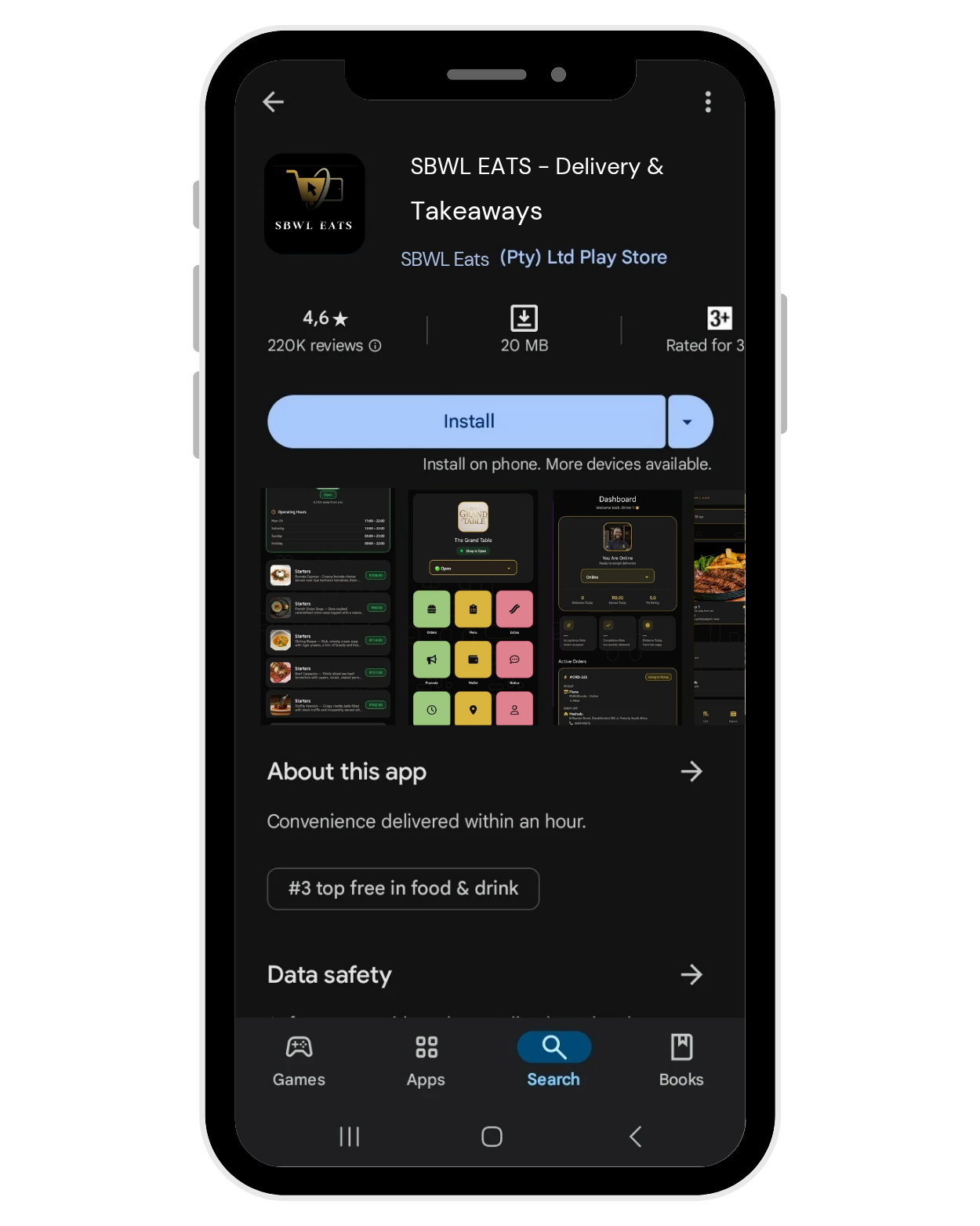
Download SBWLEats App on Goolgle PlayStore or AppleStore, you can also use our web version.
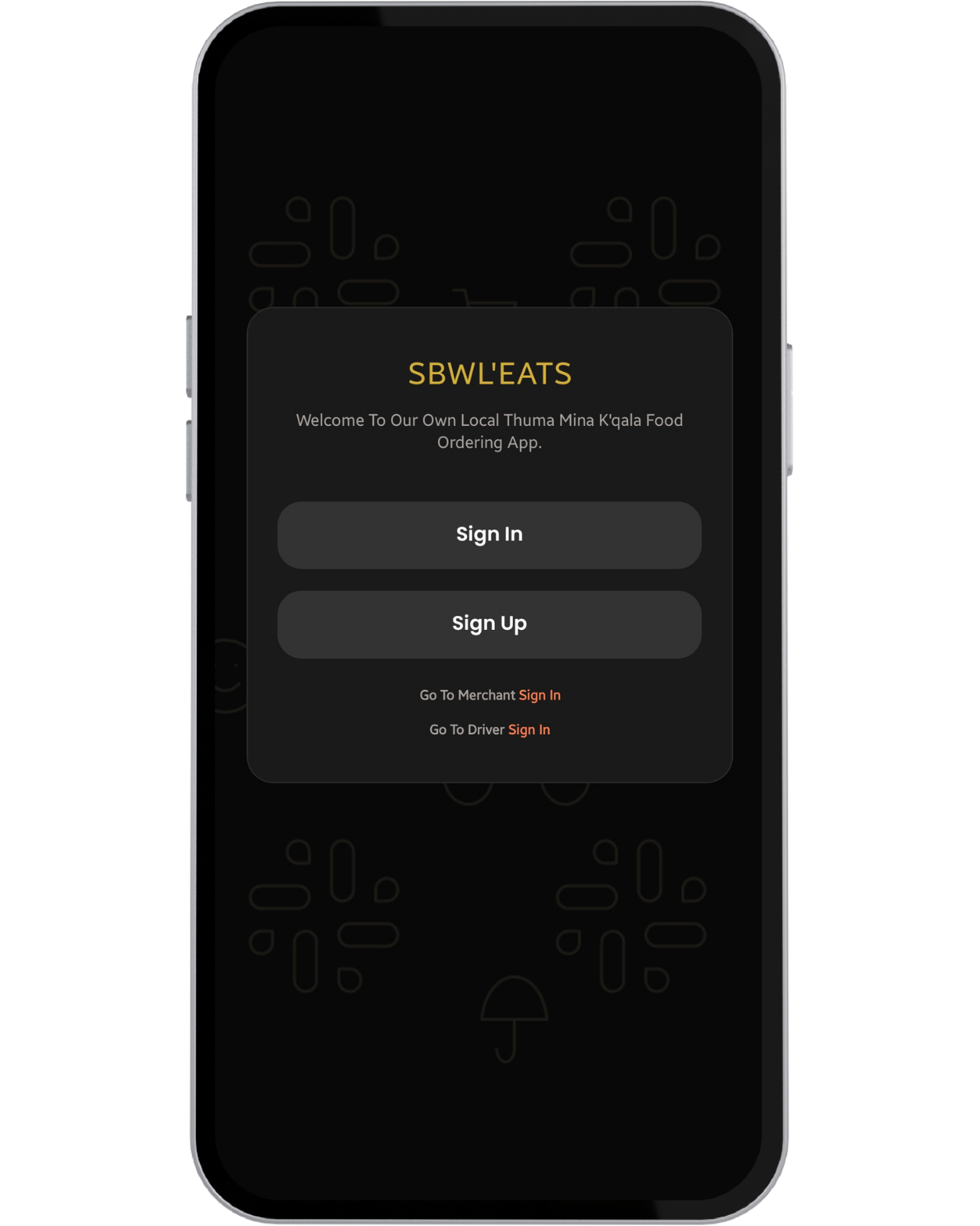
New users can easily sign up, they will receive an OTP via Email for confirmation.
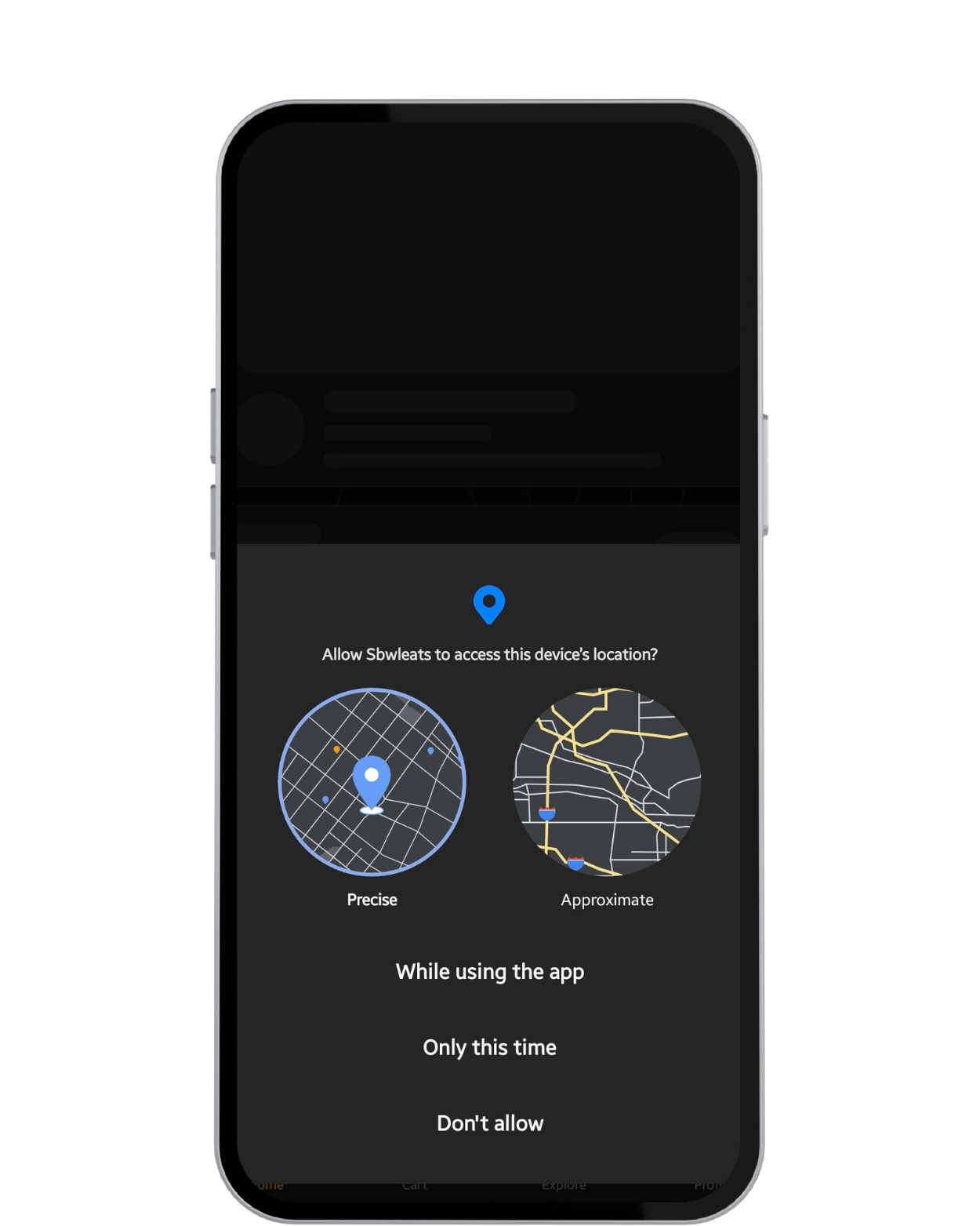
For Delivery & finding stores near you, Enable Location to get the most convenience use.
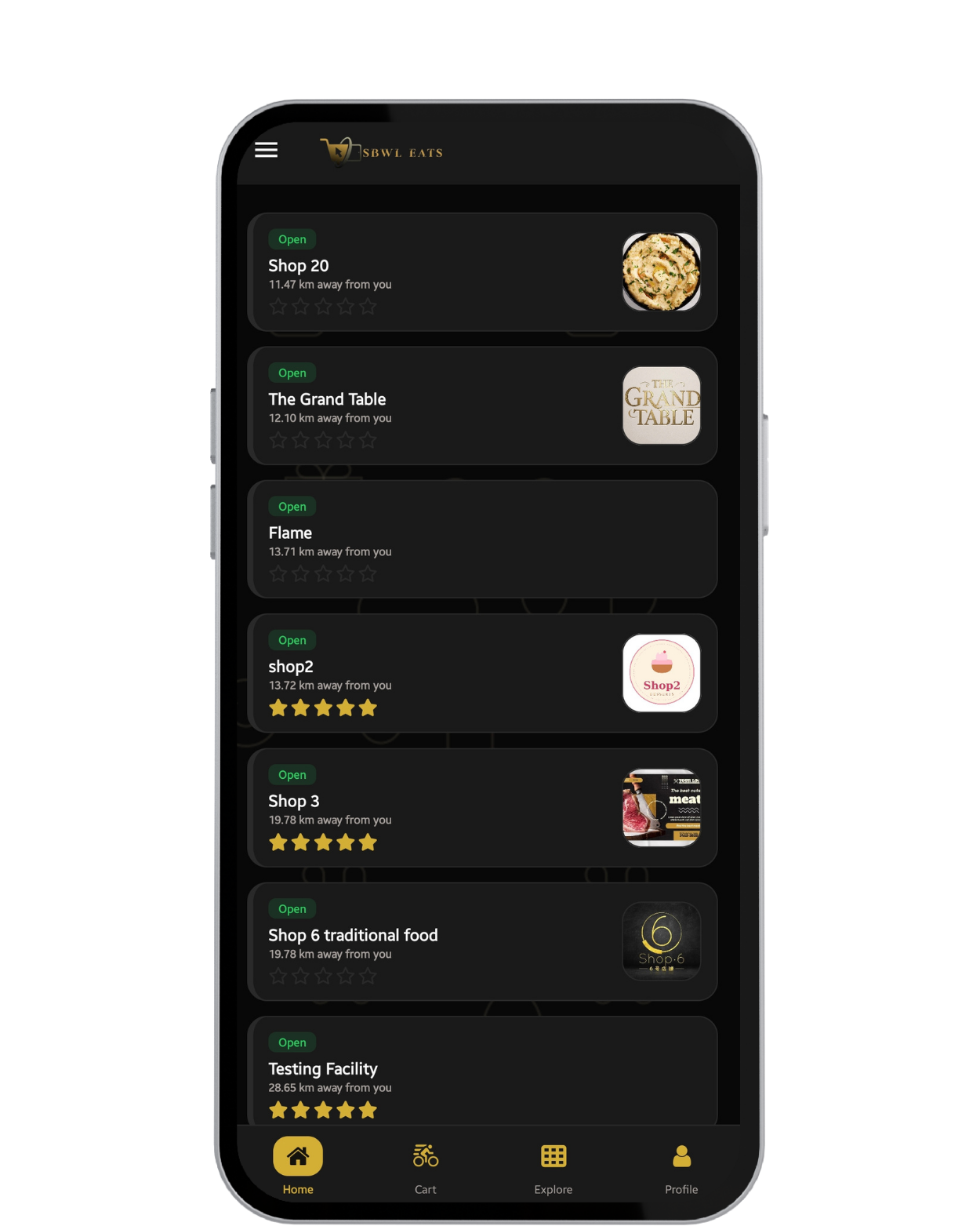
Shops will be listed from closest, with Indicators (Open, Busy, And Closed), Distance, and Ratings.
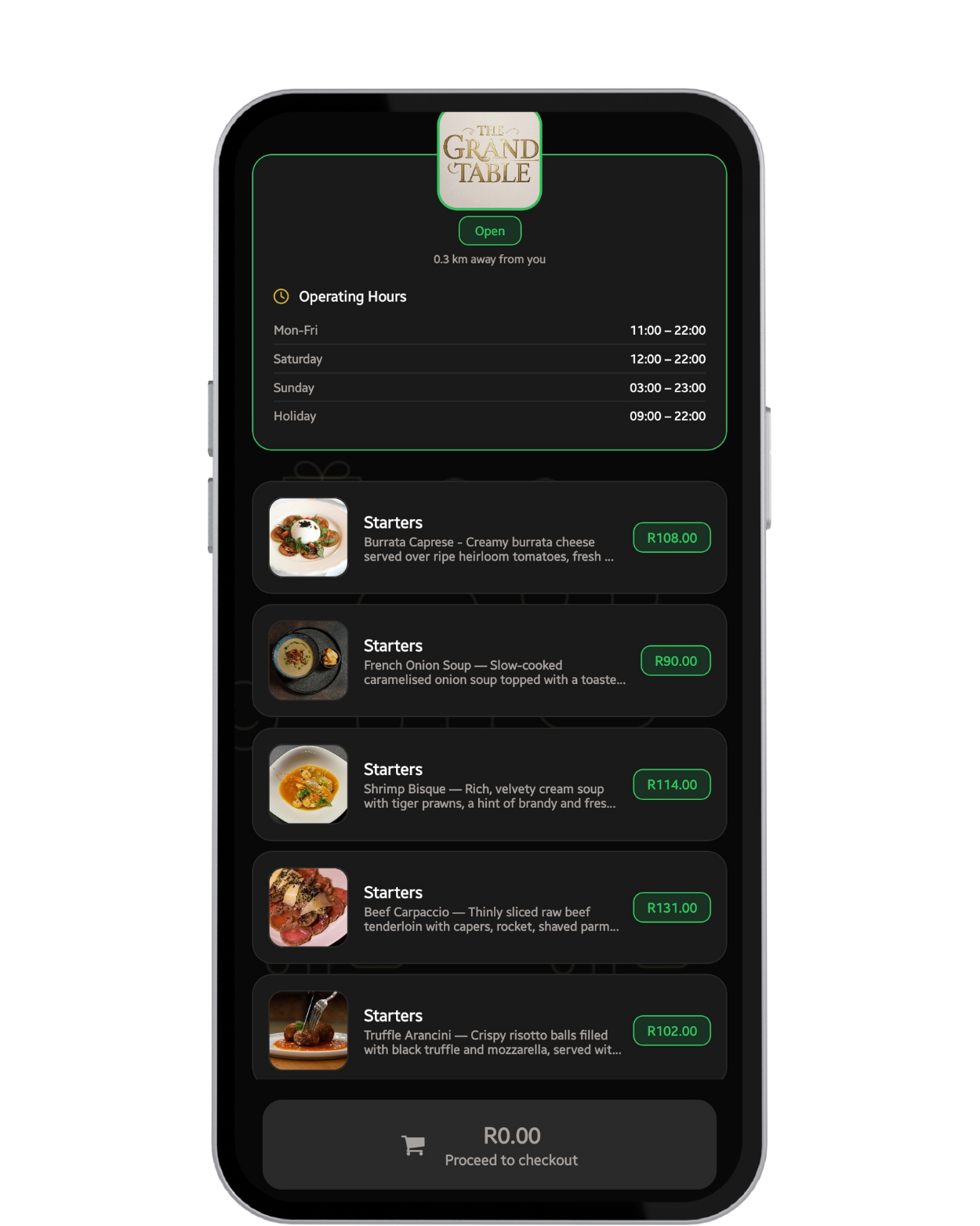
You will see Operational Hours & Food Menu Items with Pricing. Choose your Meal & Proceed.
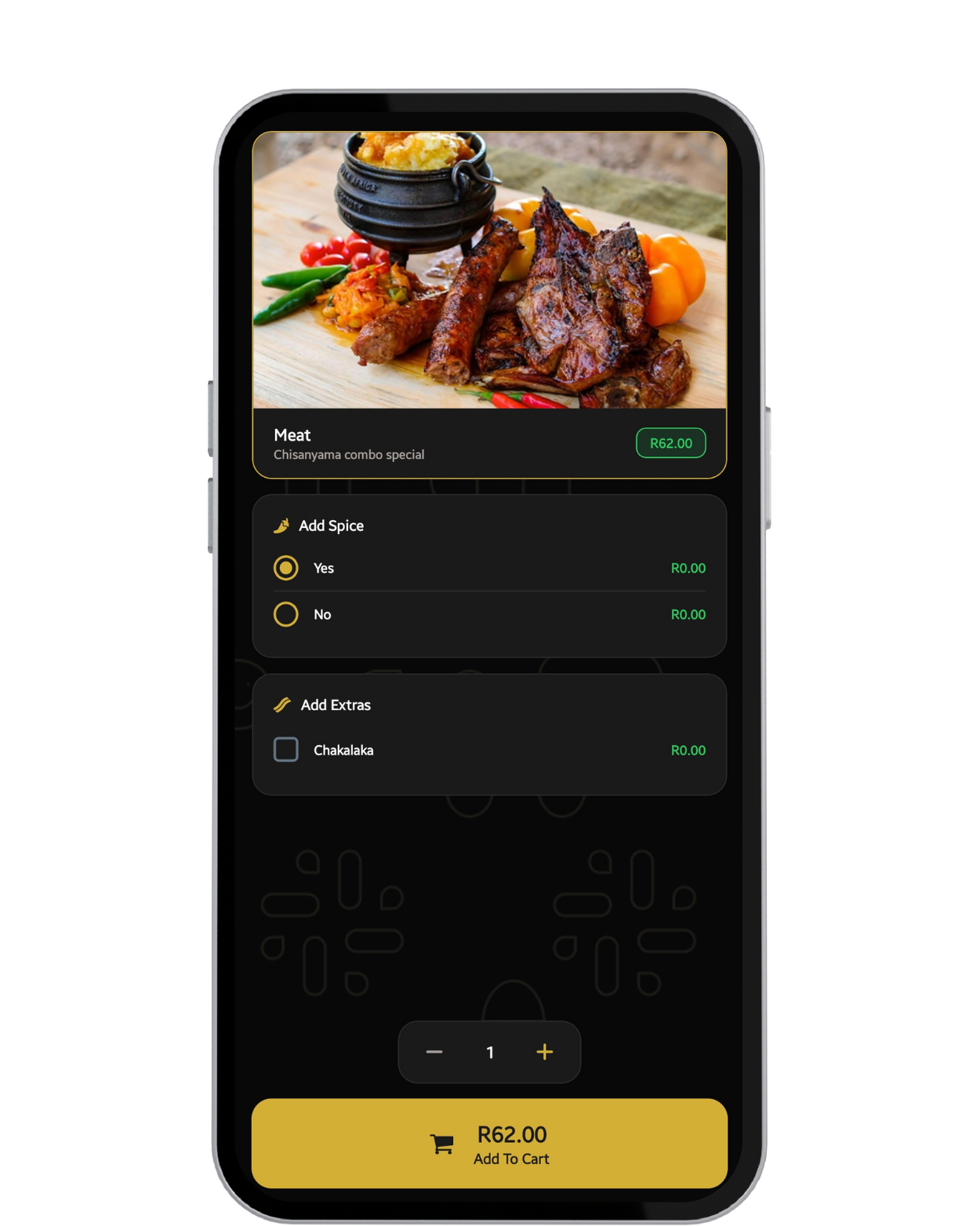
You can modify your Order as you desire. Add Sides, Extras, & Notes if available the proceed.
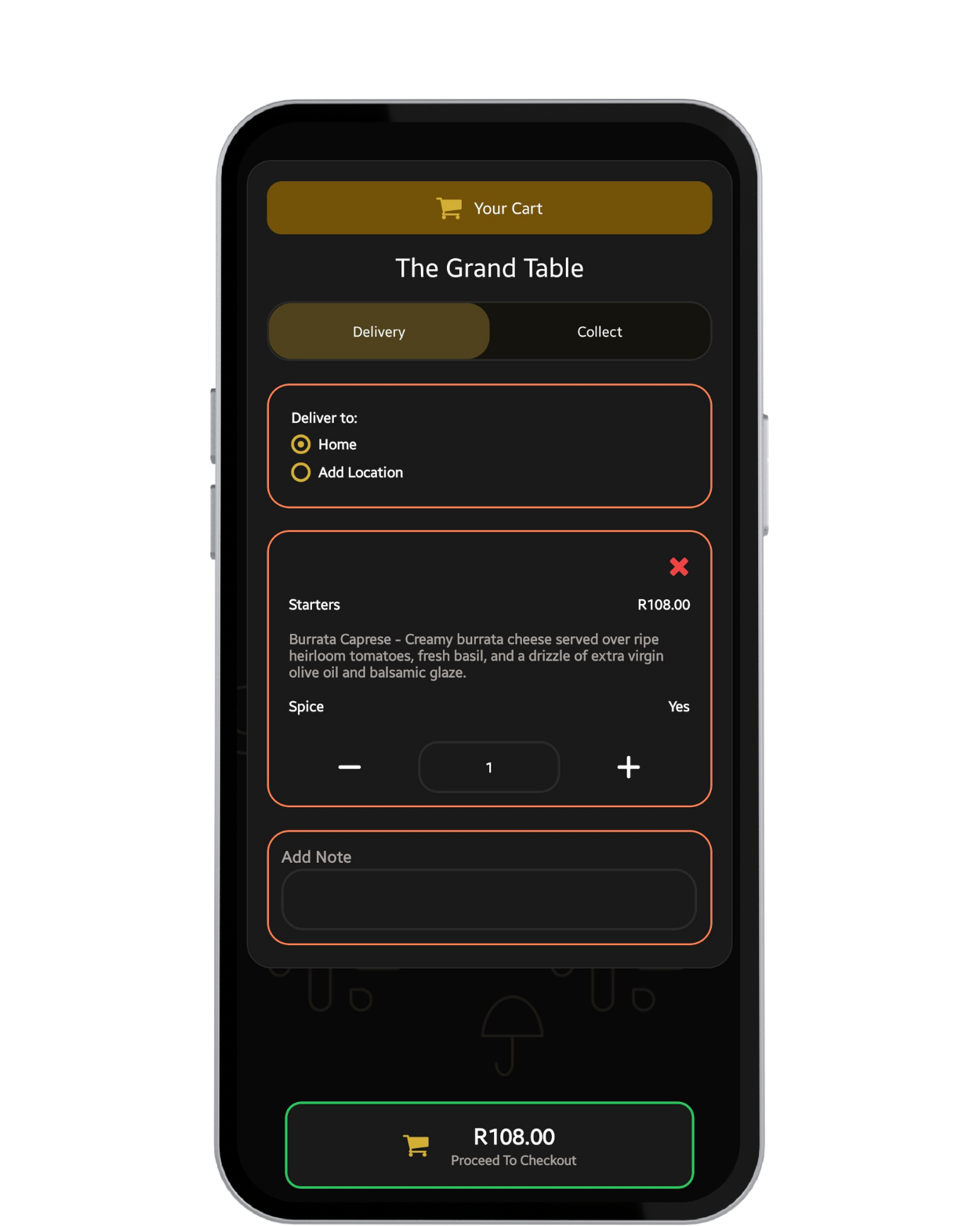
You have an option to pick between Collect or Delivery. Deliveries have Affordable prices vary with Distance.
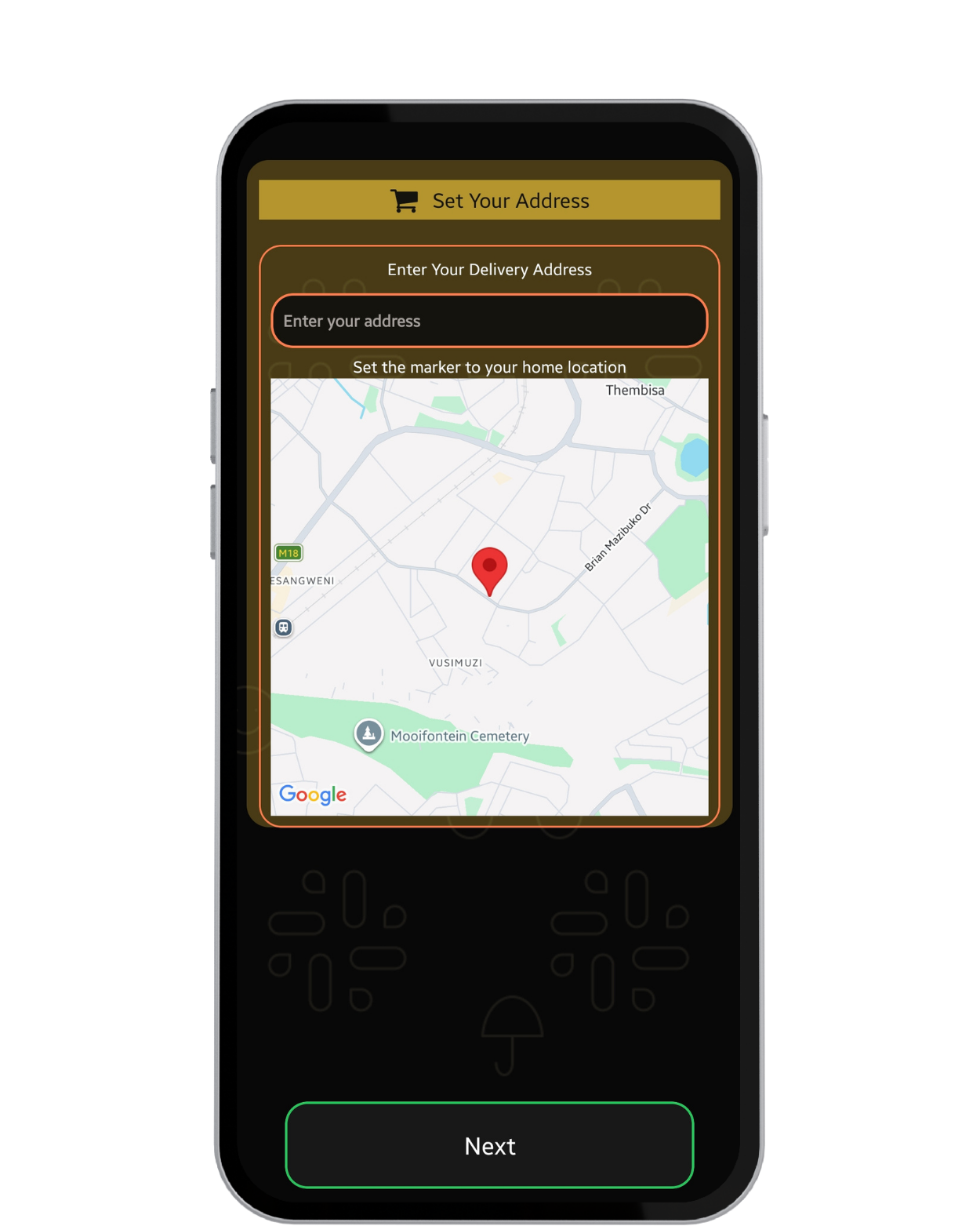
Delivery: Use Home if delivery is Set in Profile, Use Add Location for specific location. Add Driver Notes or Tips if any.
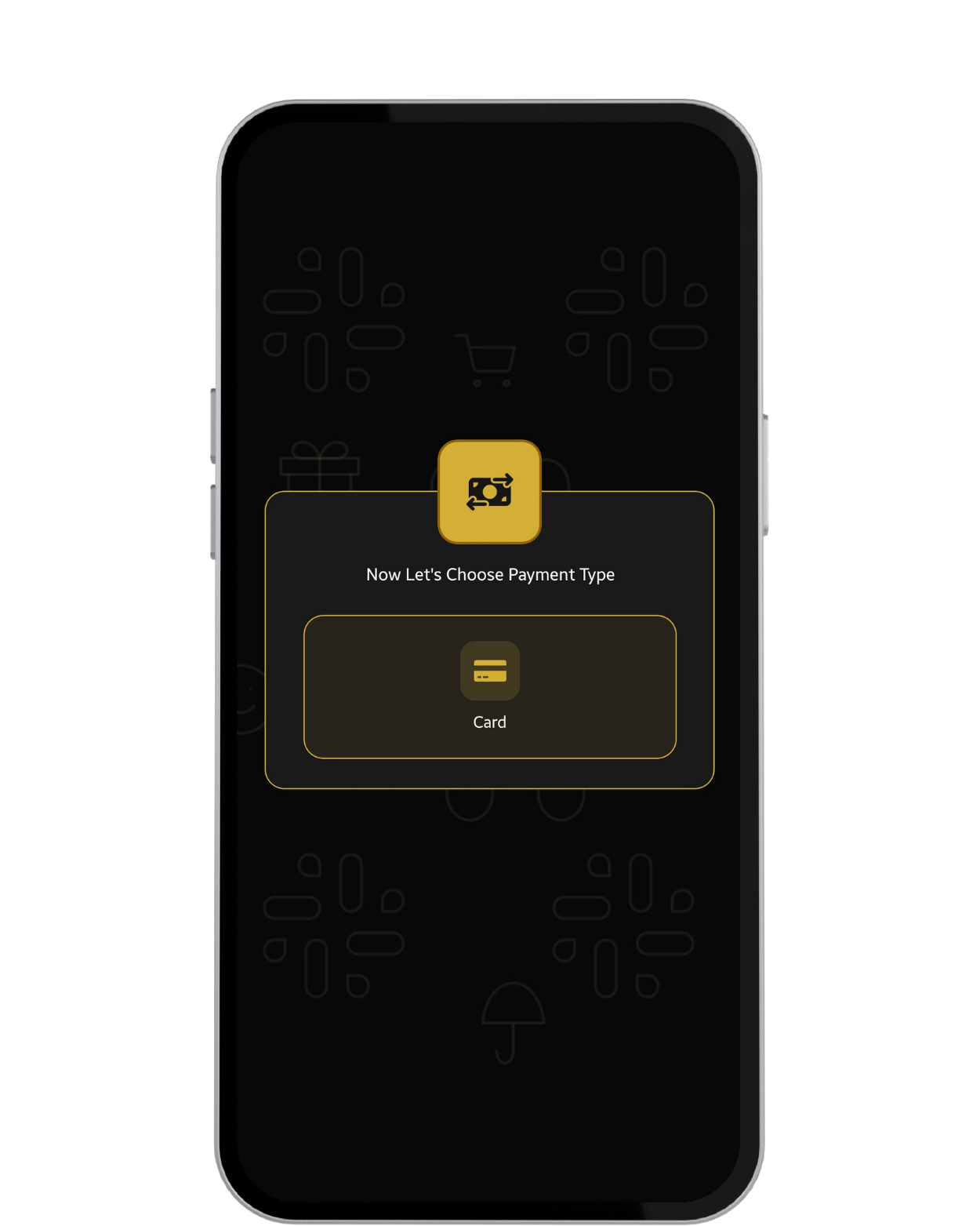
You can use Cash, EFT or Wallet to make Payments. Some Restaurants may not allow some of the Payment Methods.
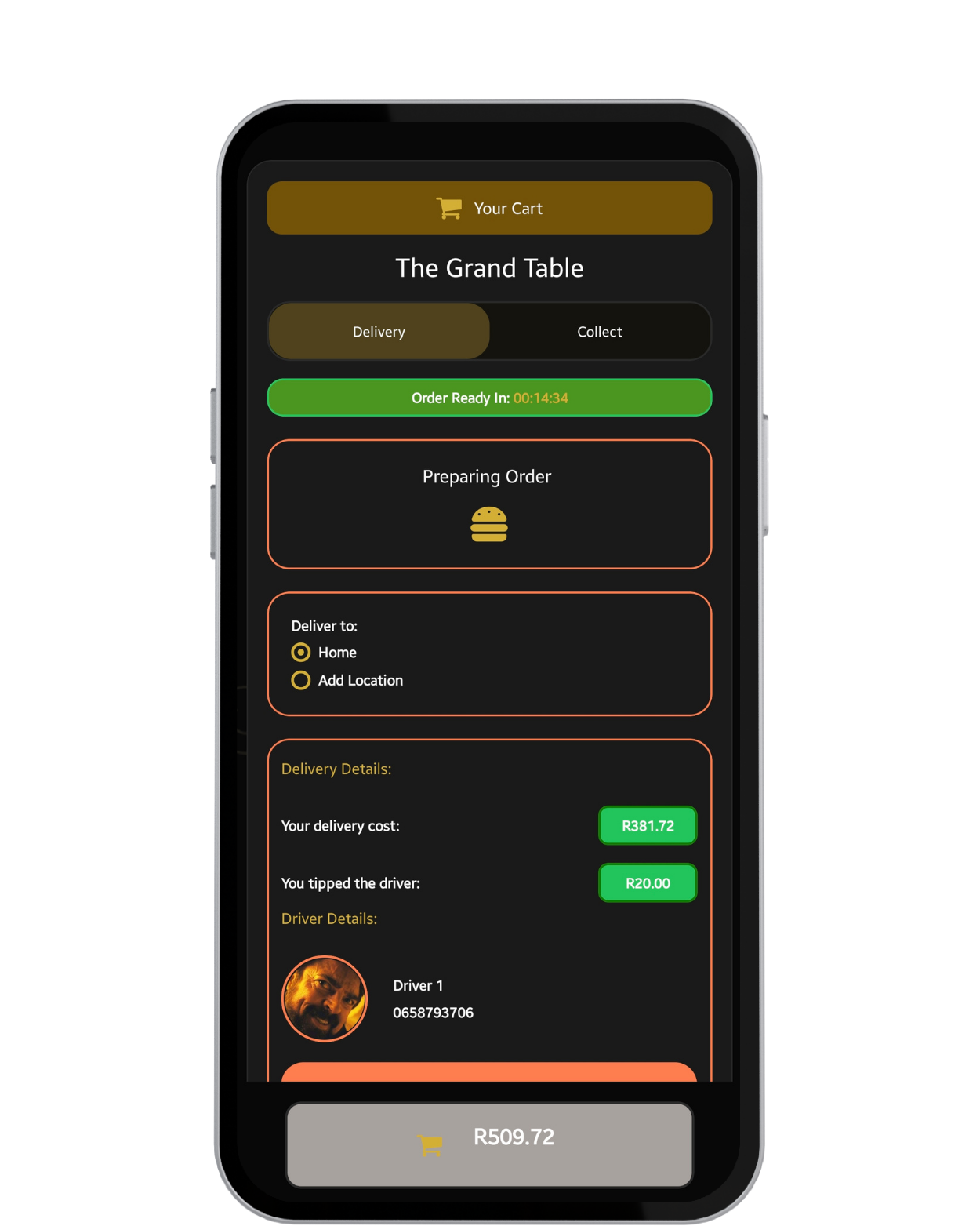
Collect : Restaurant will set Time Estimation.
Delivery : Restaurant will set Time Estimation for Driver Collection.
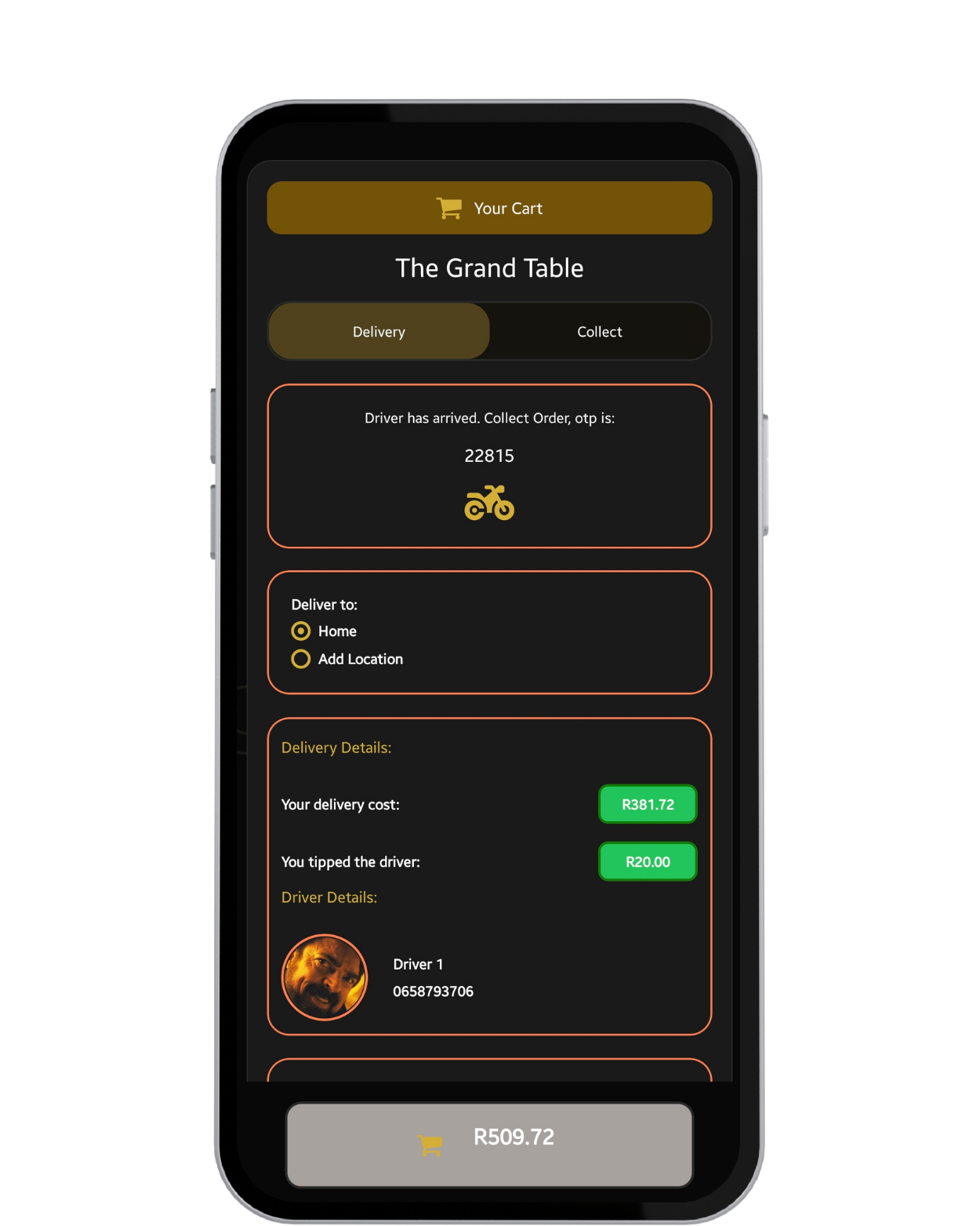
Delivery : Driver will set Time Estimation of Arrival. You will receive a Code at Drivers Arrival for Collection & Security Purposes.
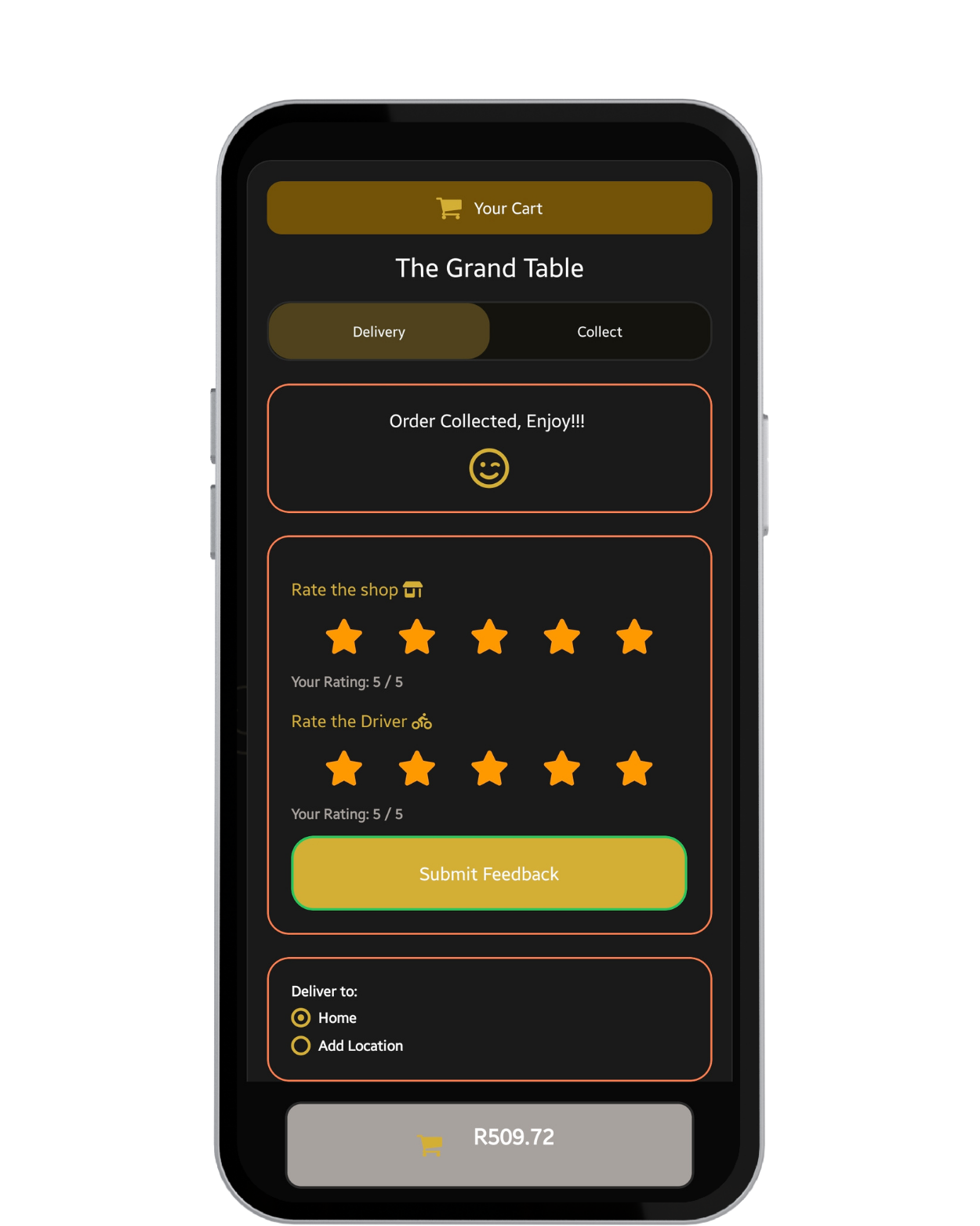
Enjoy your meal & Please do not forget to rate both driver and Restaurant after order to improve Quality & Services.
Getting your store live and taking orders, screen by screen.
Download SBWLEats App on Goolgle PlayStore or AppleStore, you can also use our web version.
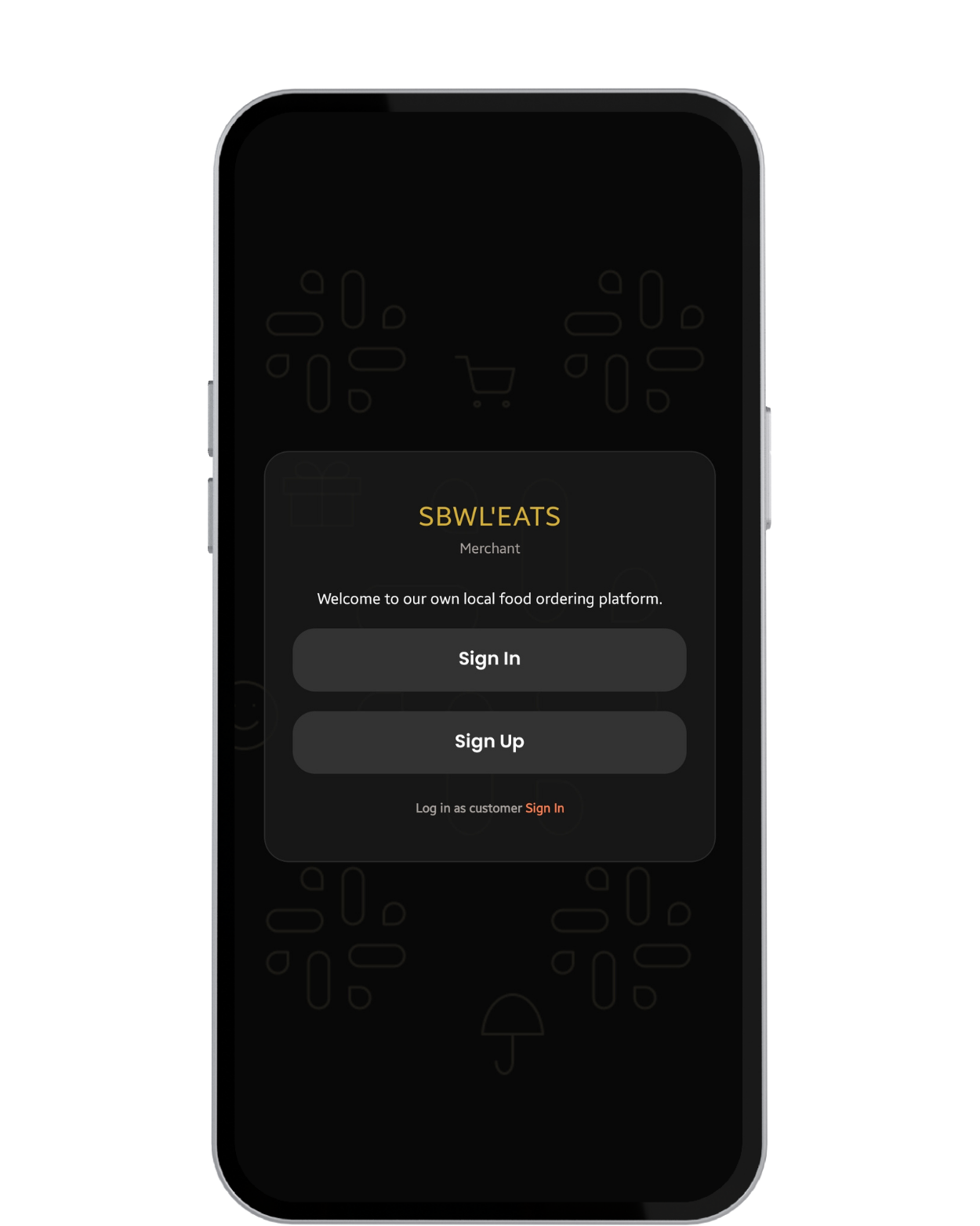
New merchant can easily sign up, they will receive an OTP via Email for confirmation and merchant code for Sign-in.
For users to identify your Restaurant, upload a Clear Restaurant Logo then Click Next.
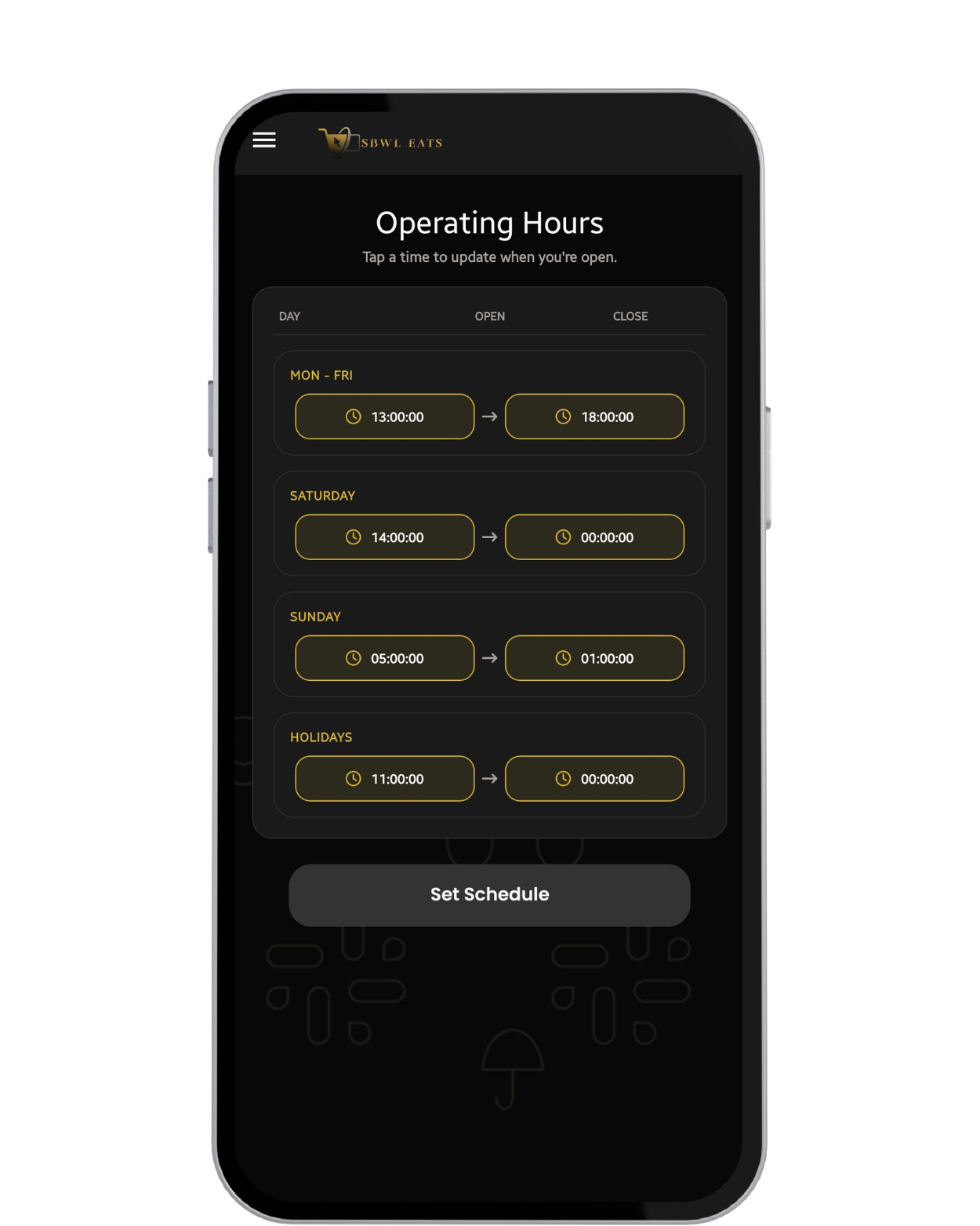
You can Set what time you want to Open or Close, which days and Holidays. SET Time to 00:00-00:00 To indicate Closed for that day.
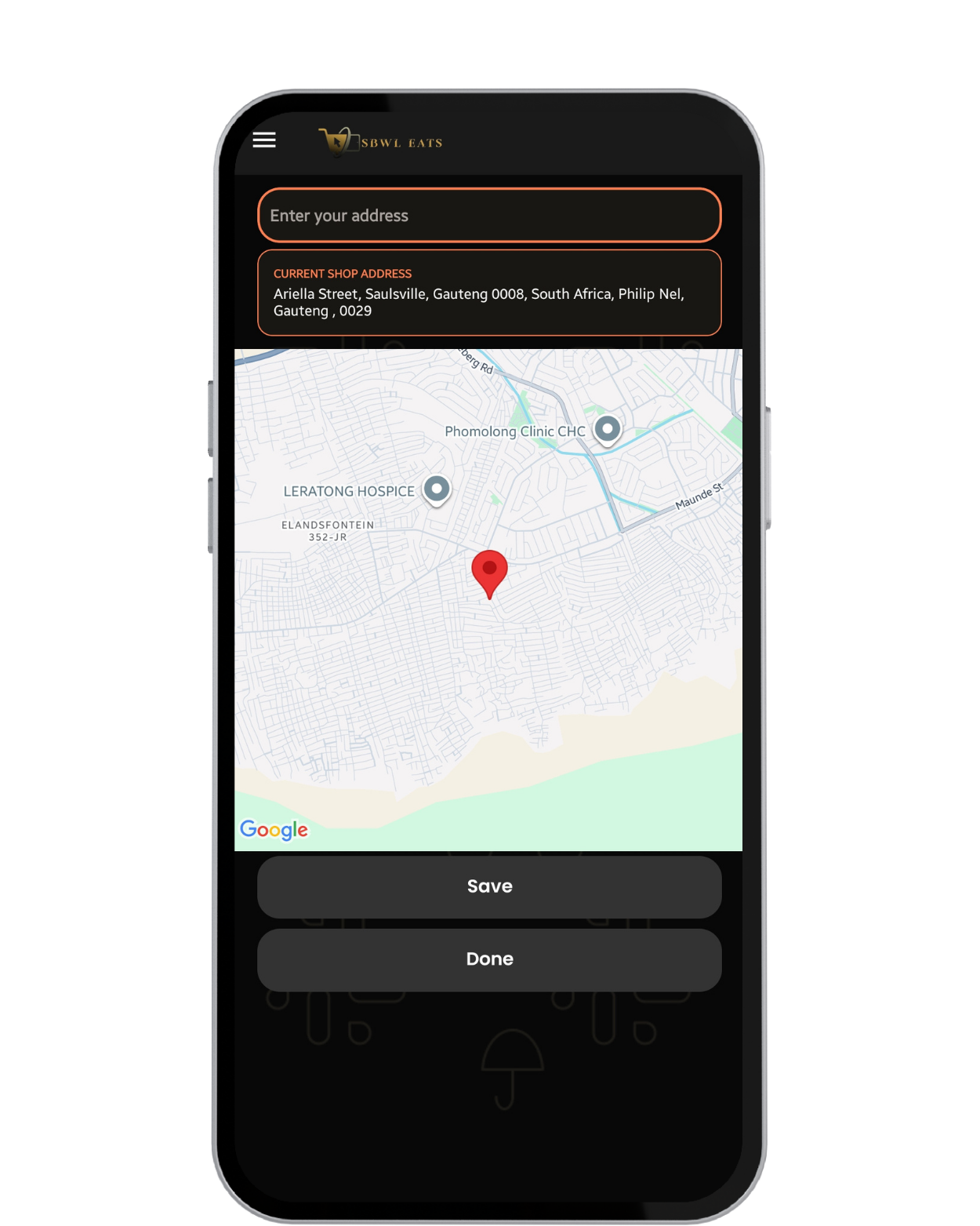
You will fill shop Address to help users located your store.
On your Add Menu Items, you will see Shop logo and Operational Hours. Click "Add Item" to add on your menu.
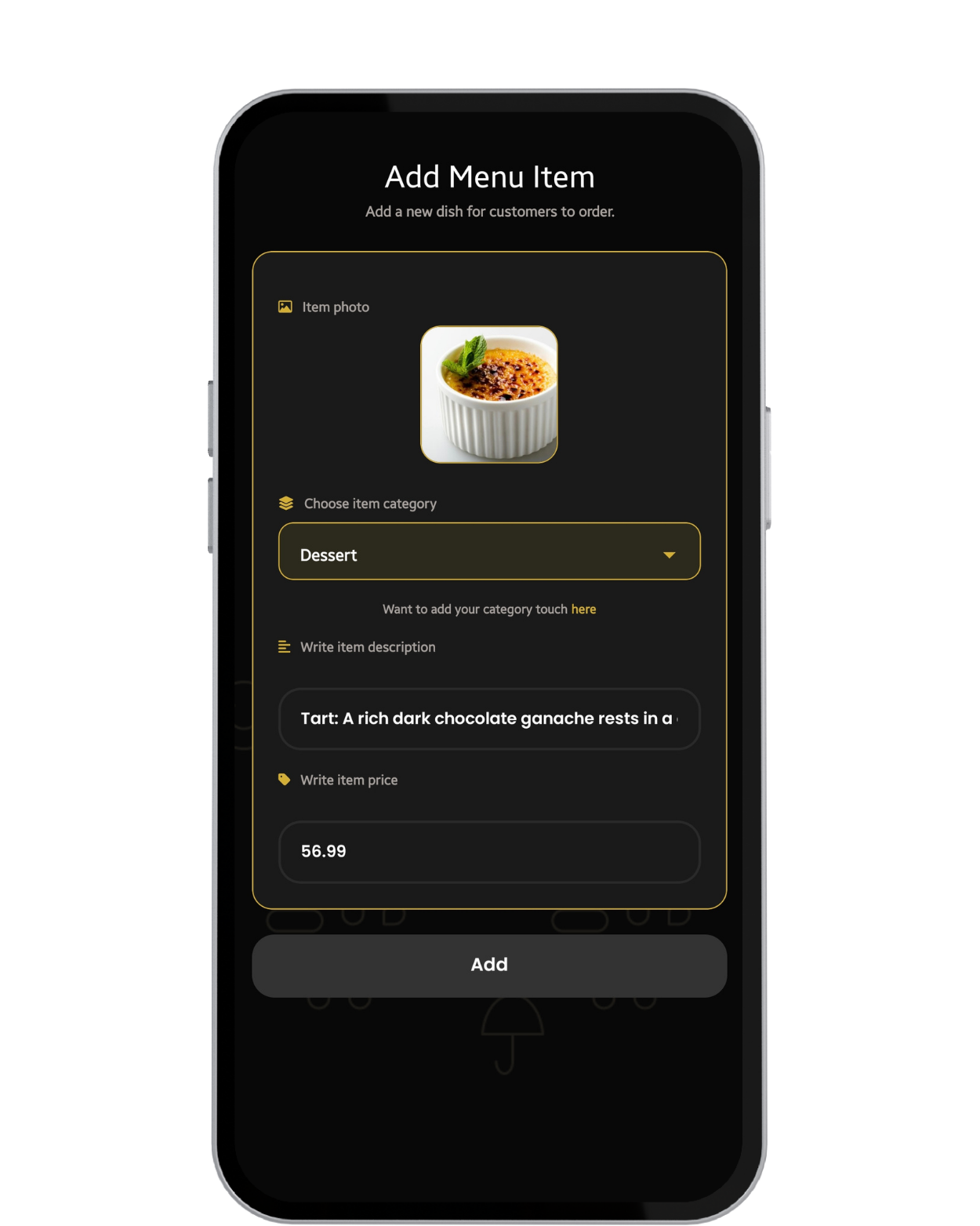
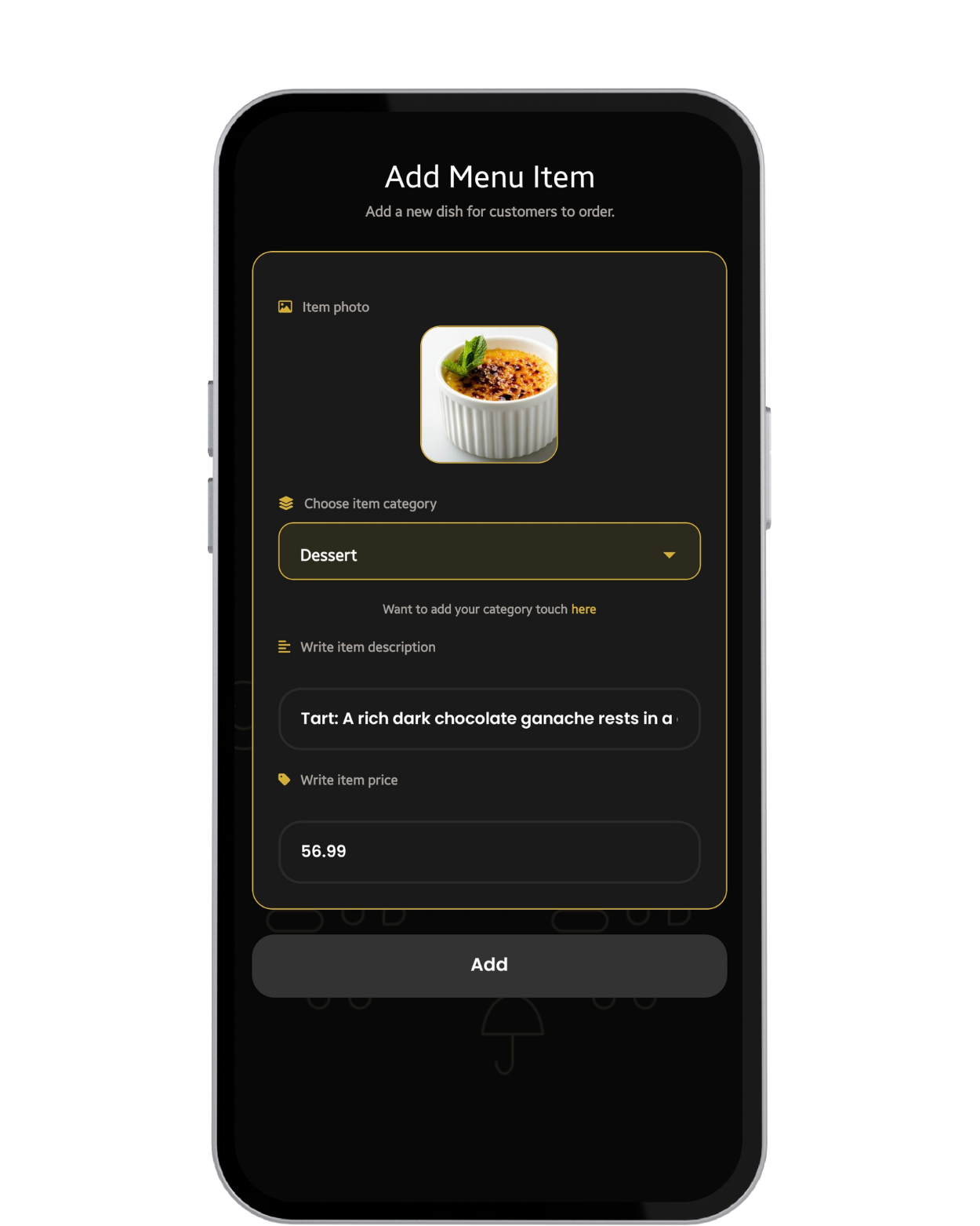
Add a clear image of Item, Choose category(Meat,Kota,Seafood,etc). Describe item e.g for Kota (Bread, chips, polony).
Price without R
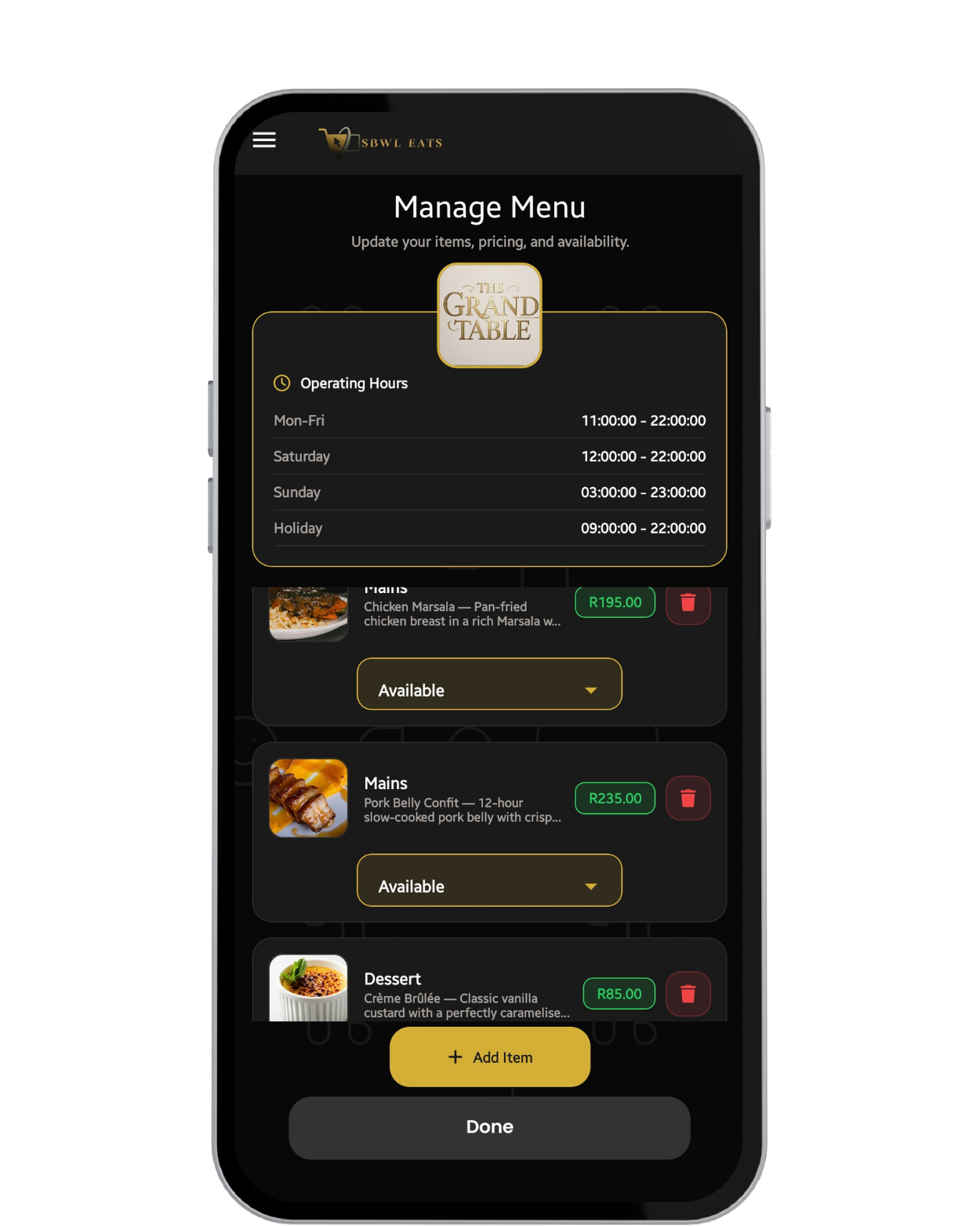
Your Menu will appear like this. You can remove item if no longer selling, adjust if available or not that moment.
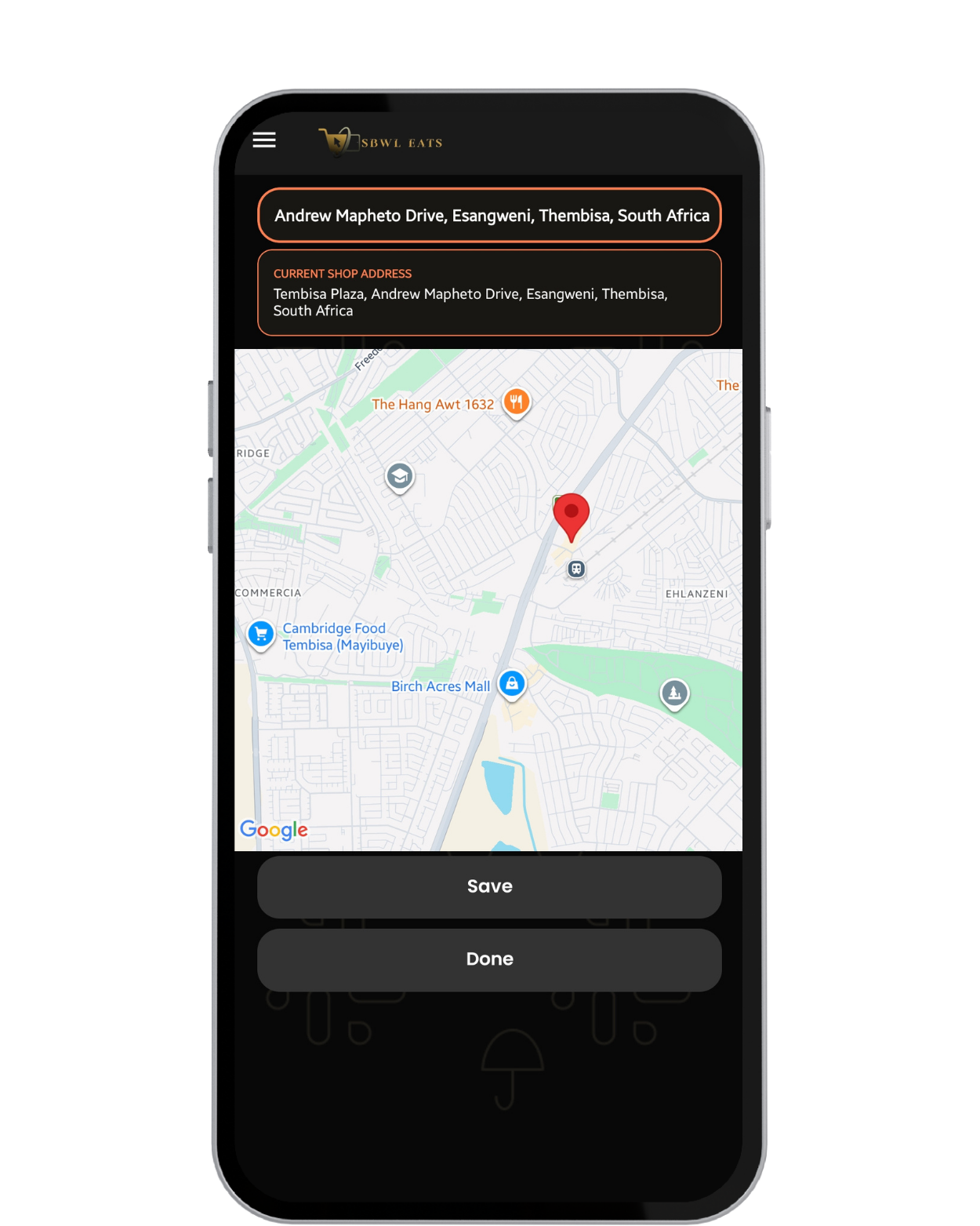
Use two fingers to zoom in/out. Press and hold pin, drag pin to store exact location. Then done.
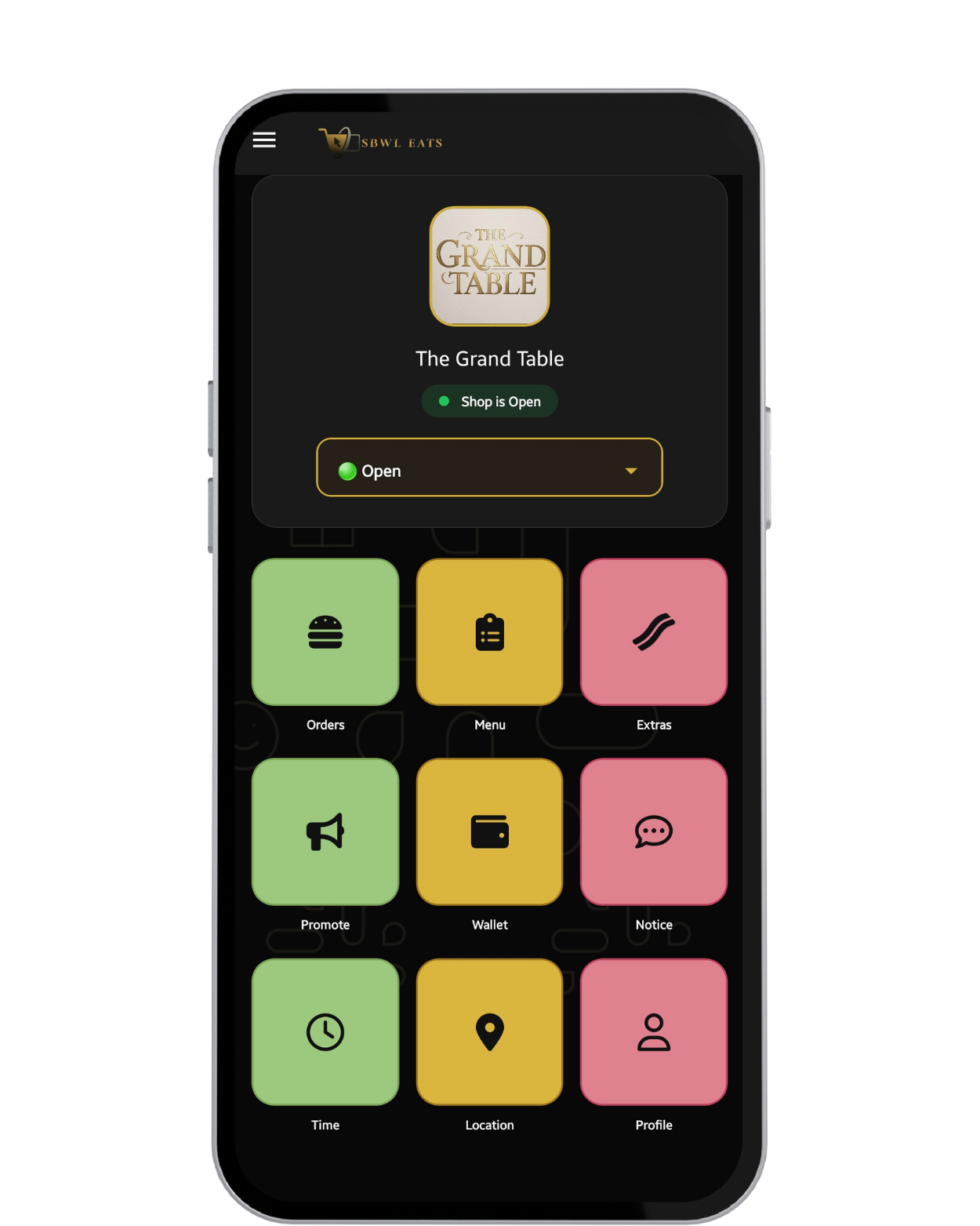
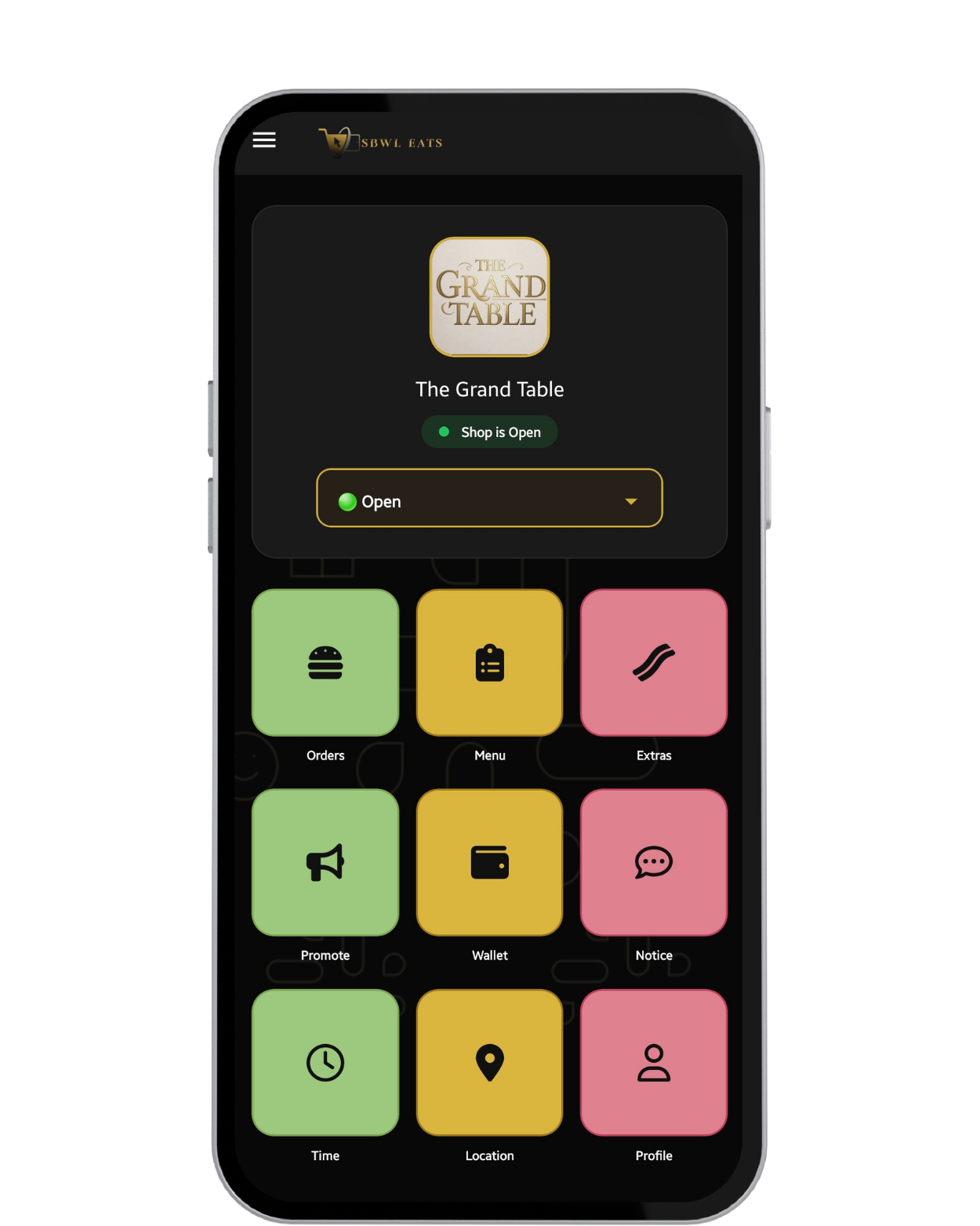
Dashboard includes shortcut nav, Shop Logo & Status (Open, Busy, Closed). You can adjust all on dashboard.
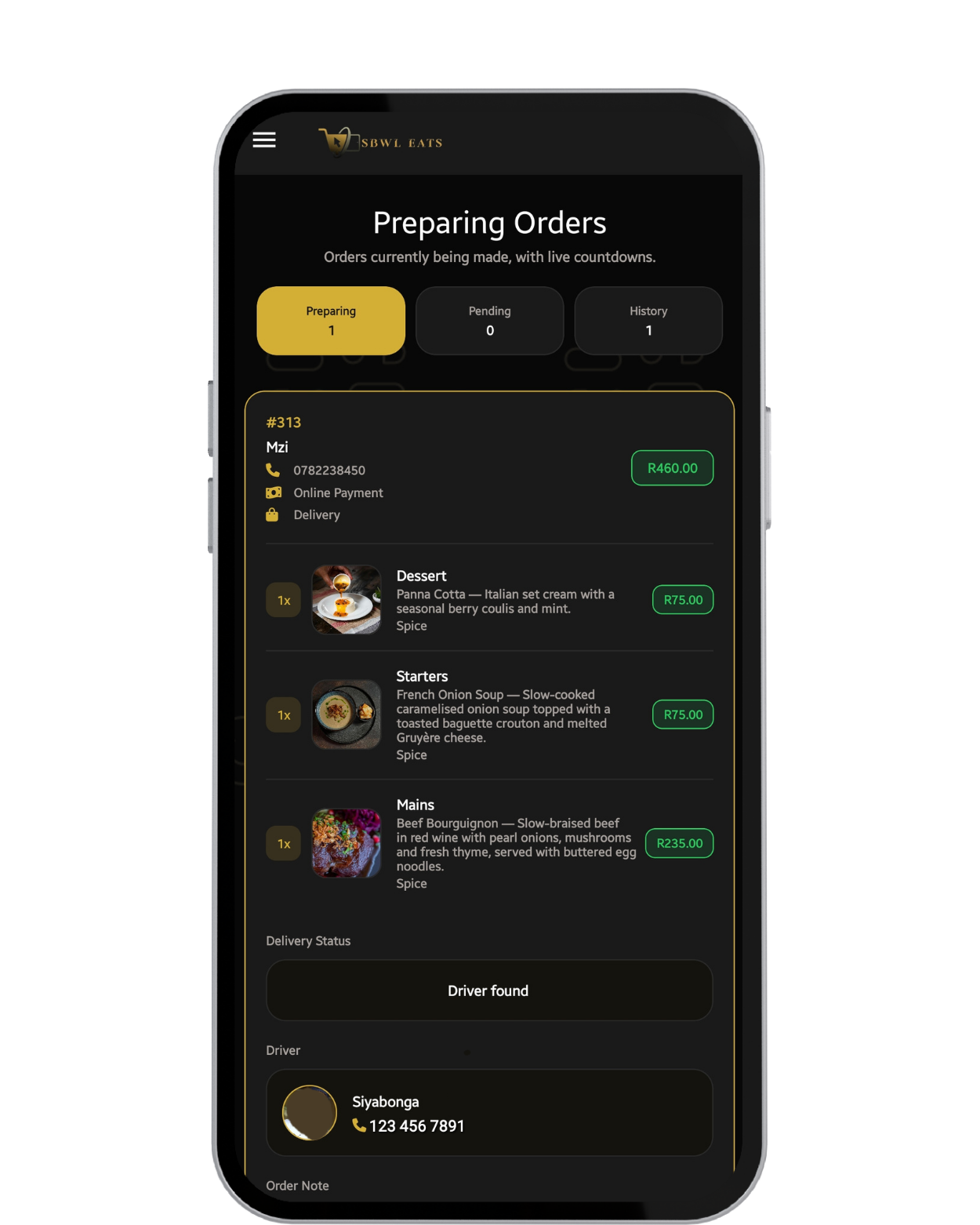
You will spend more time one the Orders page, all orders will come in here and adjusted here.
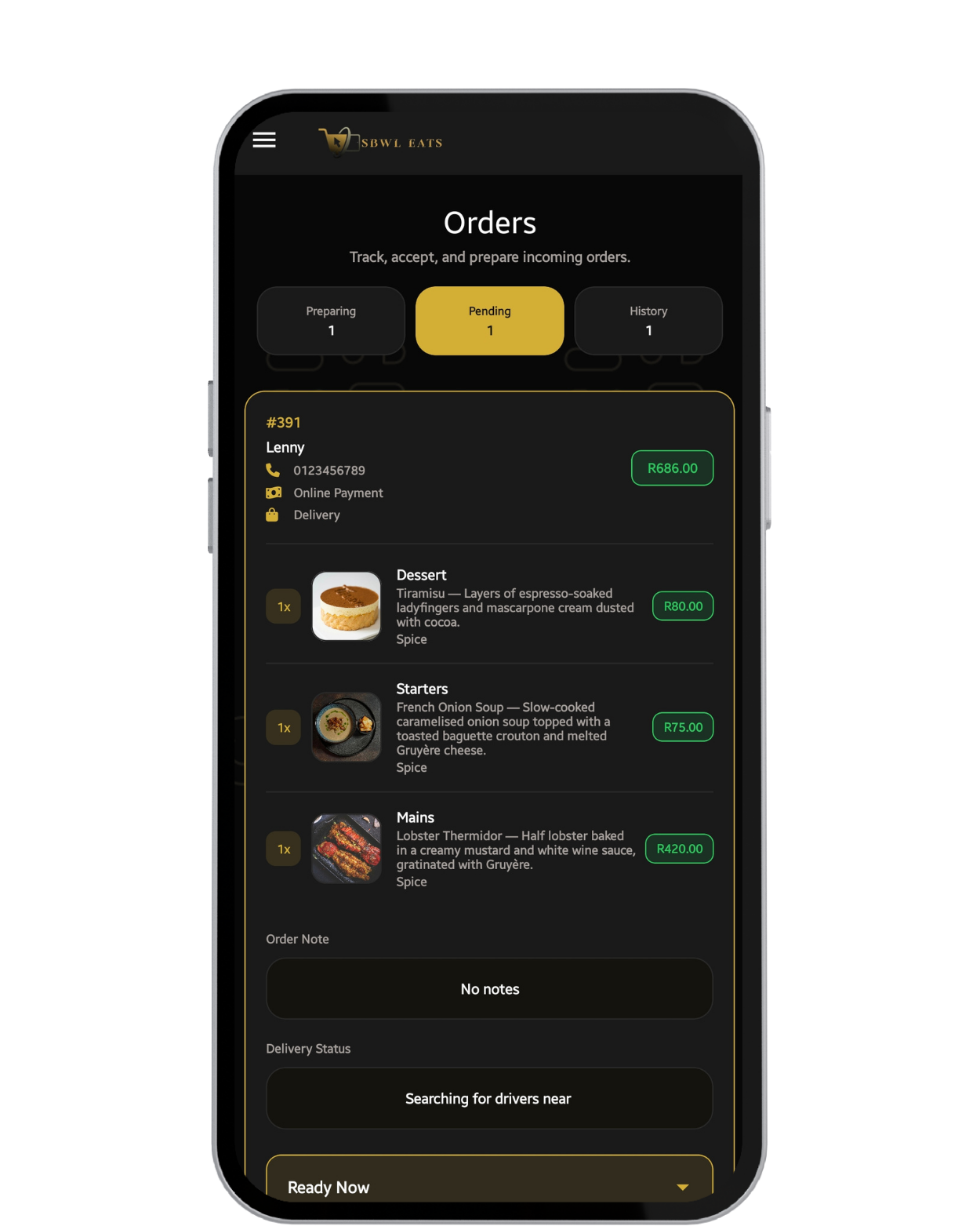
Your Order will have Order Number, Name of User, Collect/Delivery, Payment type, Items& Price. Accept/Decline Order.
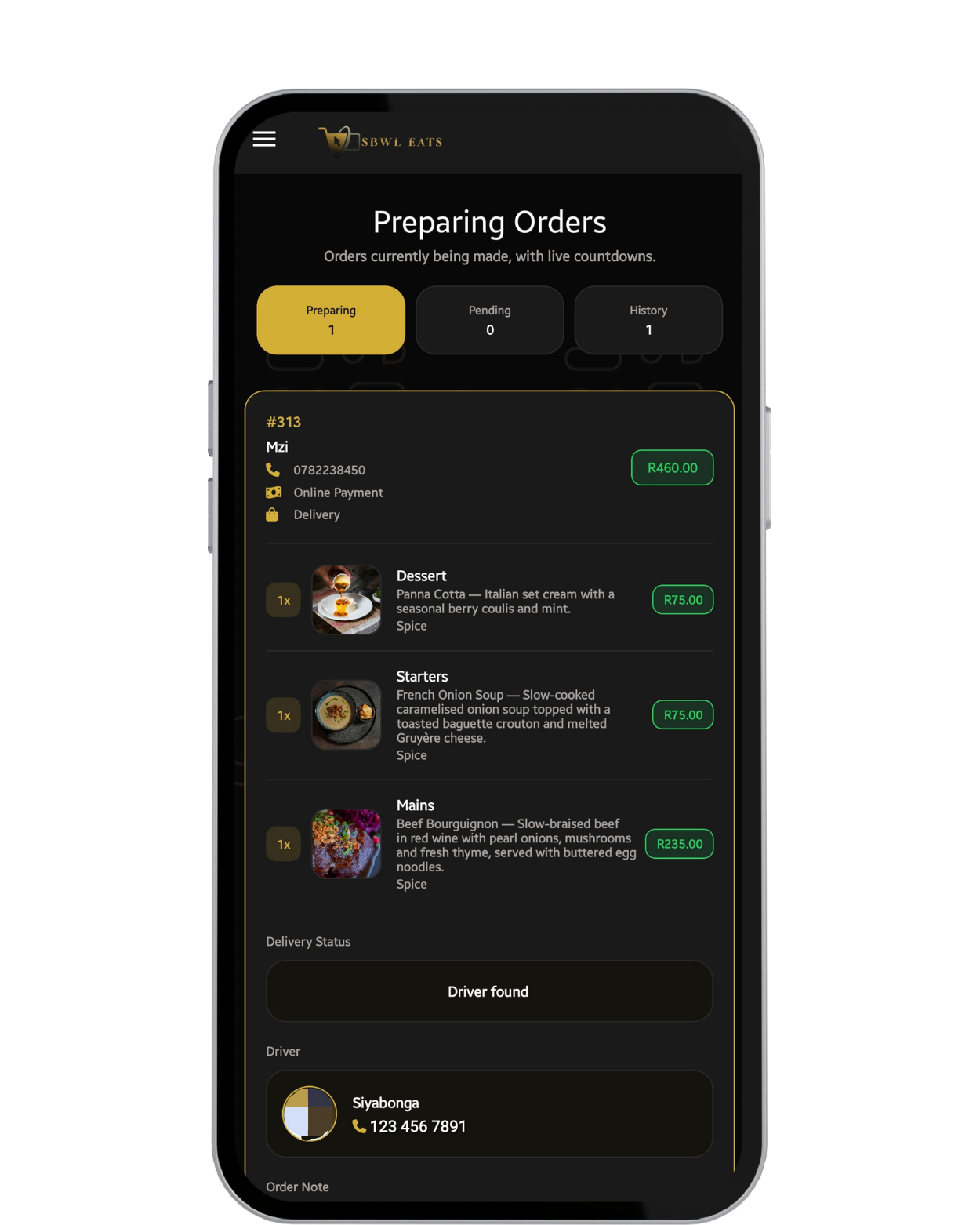
After accepting the order it will go to InProgress Tab, you can adjust time estimation to complete order.
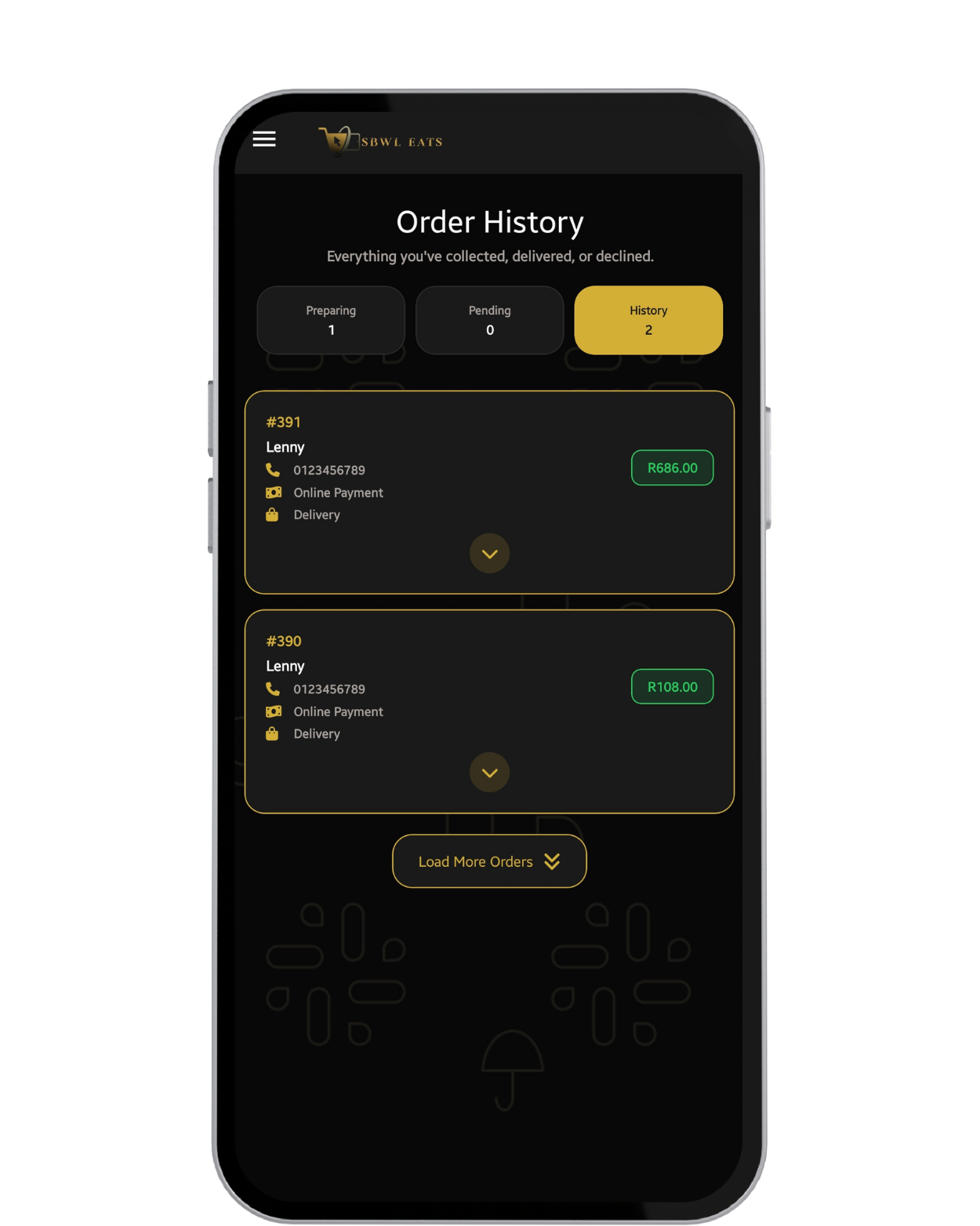
After timer is completed / order is ready, user will be notified to collect or the driver.
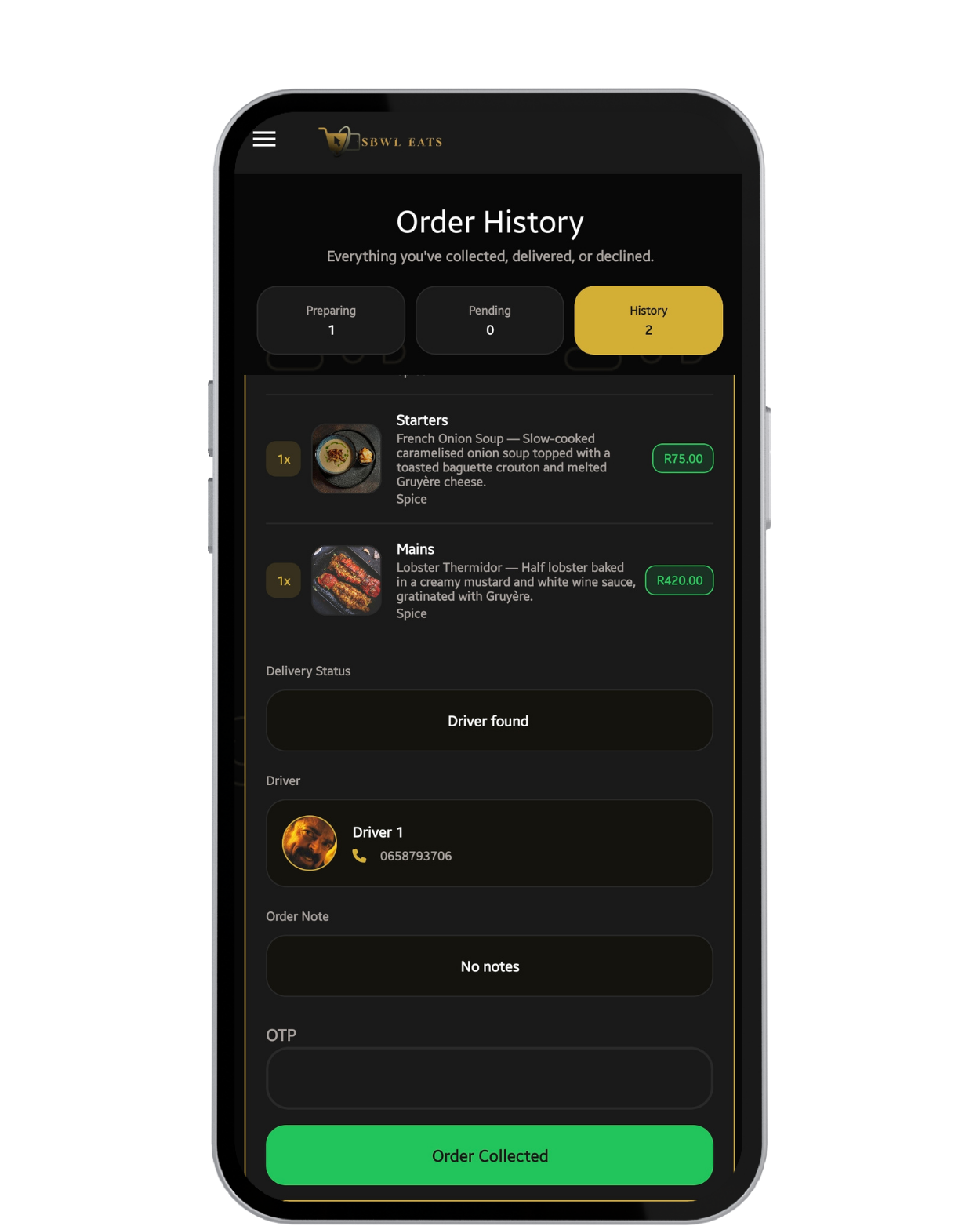
After order is ready Driver will be notified. Driver will provide Code to collect Order.
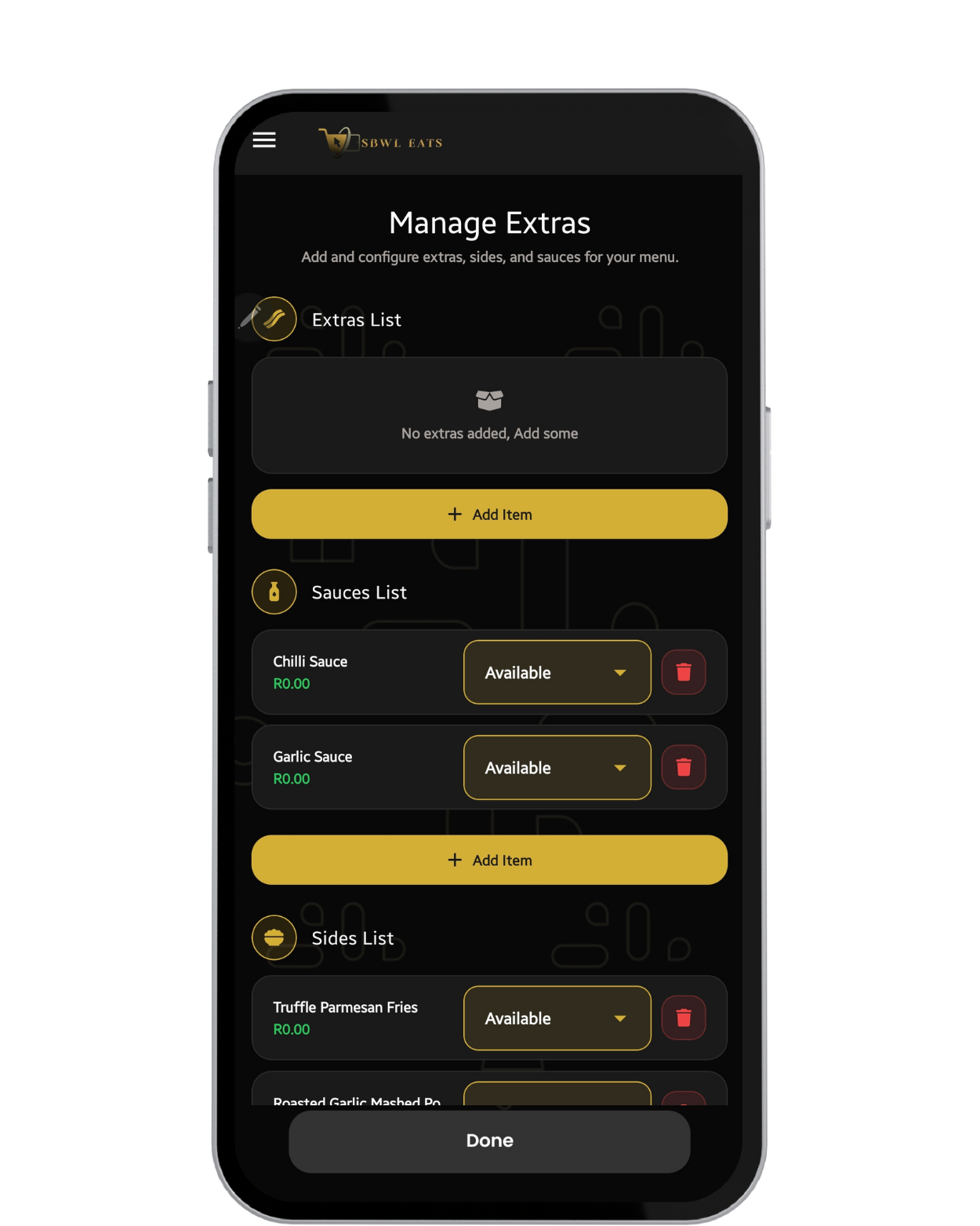
On the Dashboard you can add or remove Extras, Sides & Sauces. Note: Sides & Sauces are free.
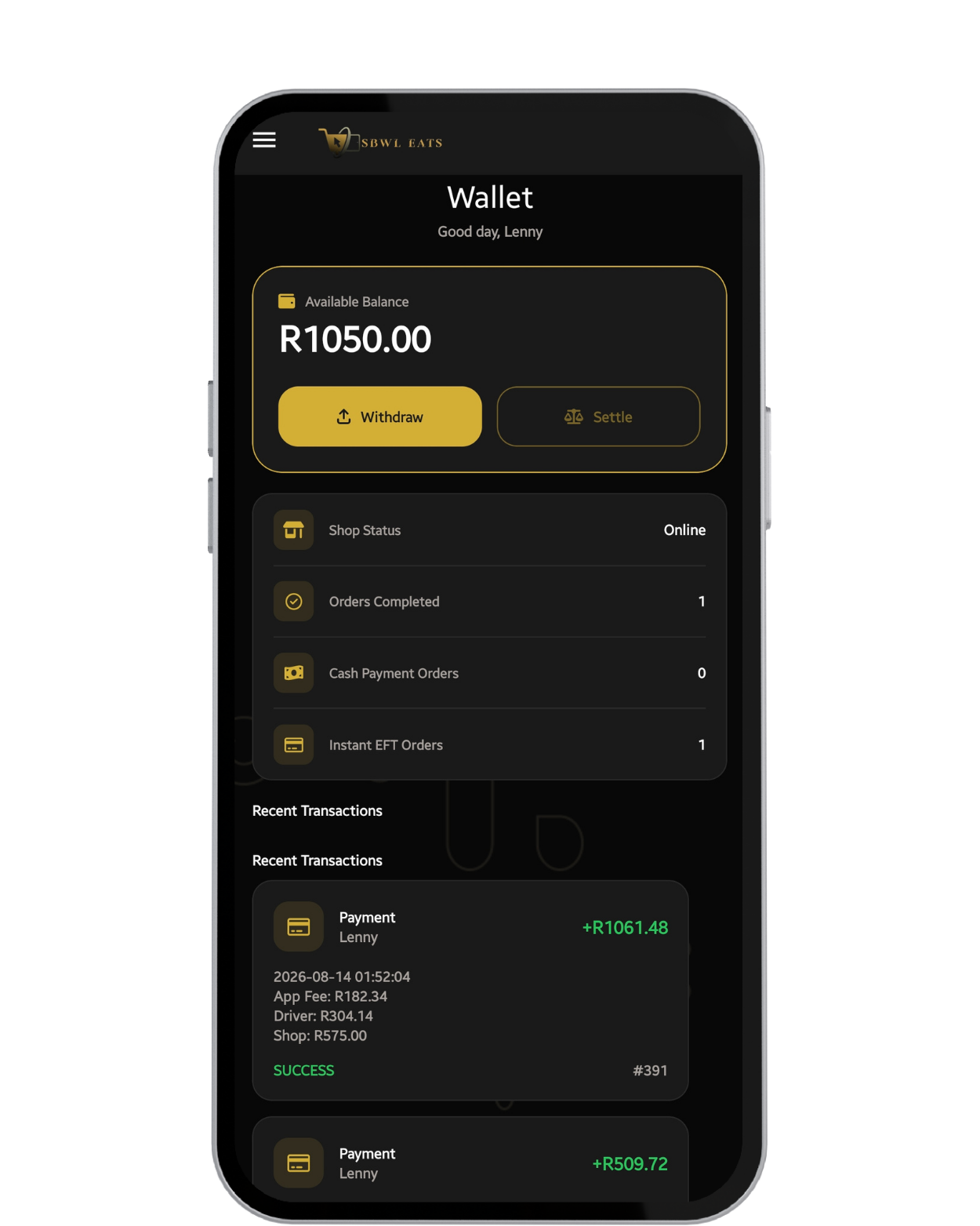
You manage your own finances, and you can check progress if business is growing and its analytics.
You're in charge of your finances, that is why you can withdraw your money at anytime.
No fixed shifts — go online whenever you have time and start earning.
Download SBWLEats App on Goolgle PlayStore or AppleStore, you can also use our web version.
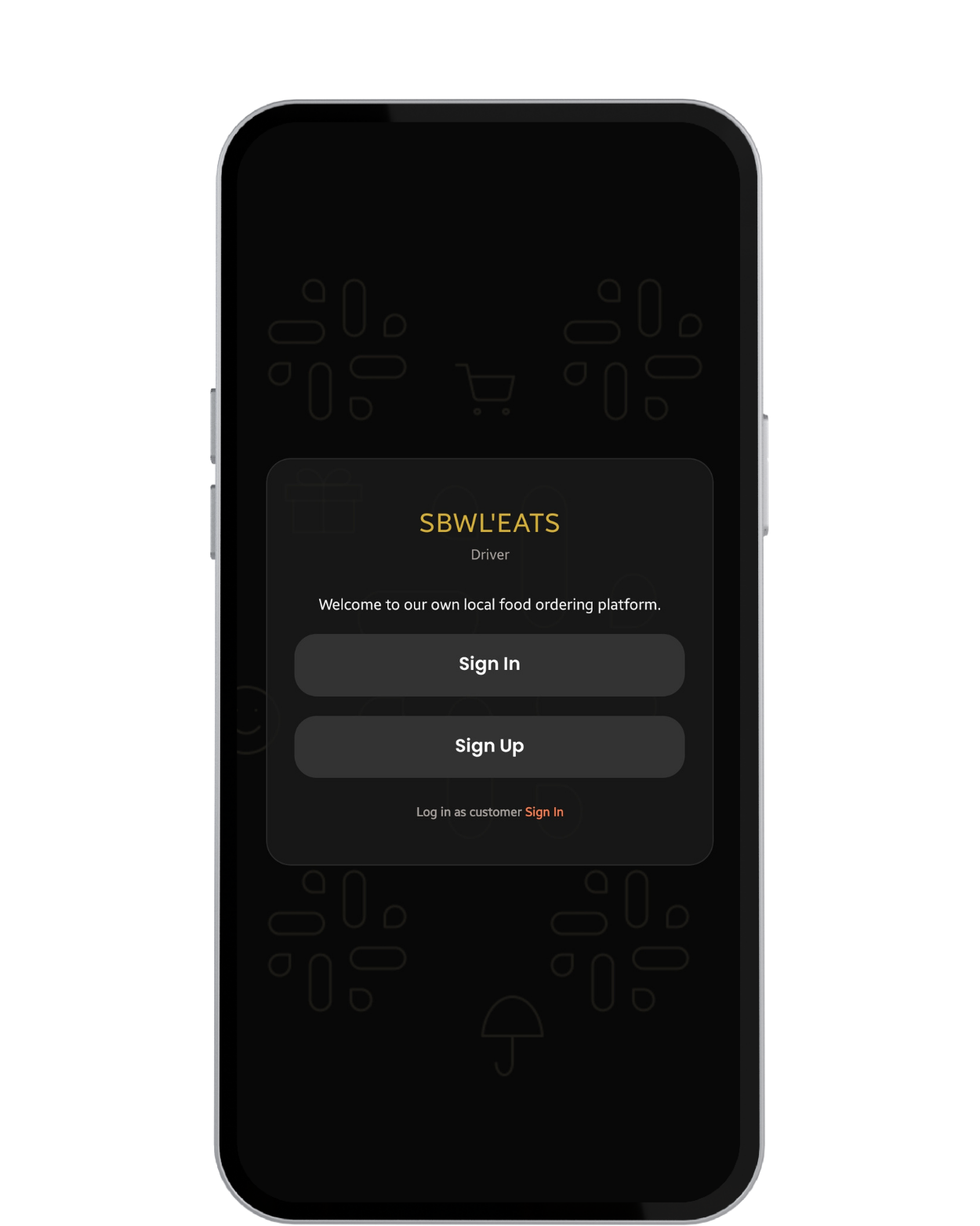
New drivers can easily Sign Up, they will receive an OTP via Email for confirmation & Driver Code to Sign In.
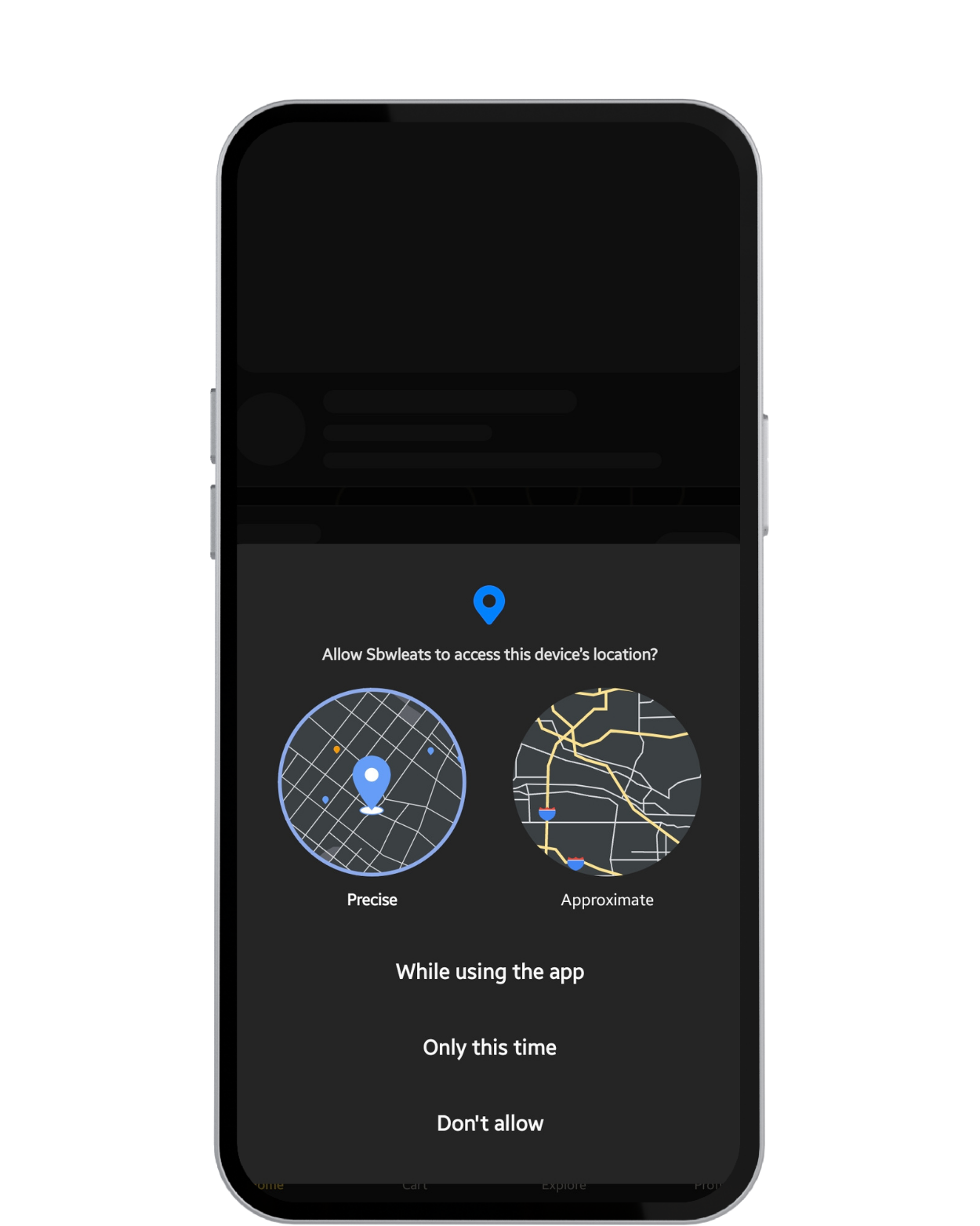
For Delivery & finding stores near you, Enable Location to get the most convenience use.
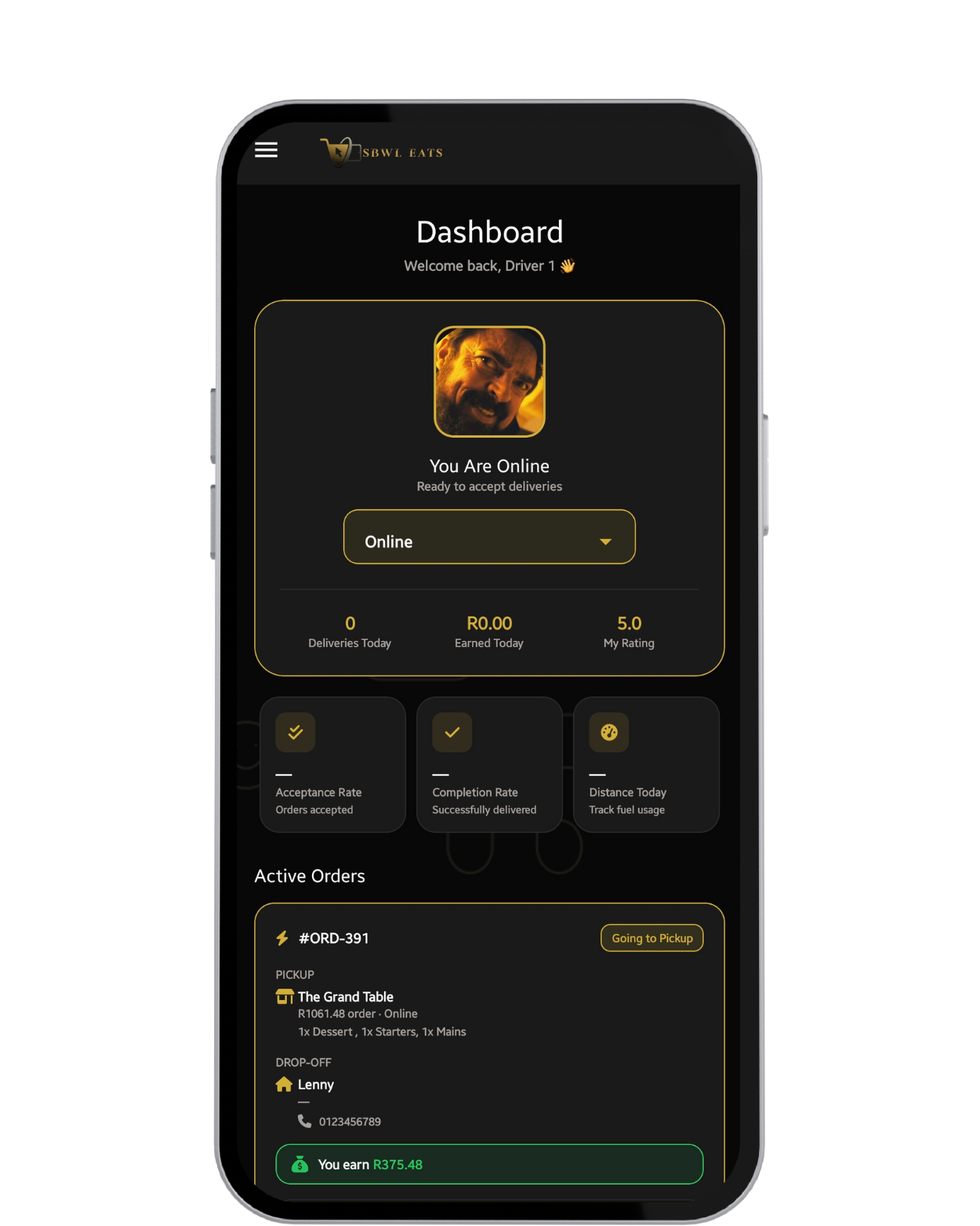
Upload a clear Selfie without any Filters. Selfie should be colorful and a clear background.
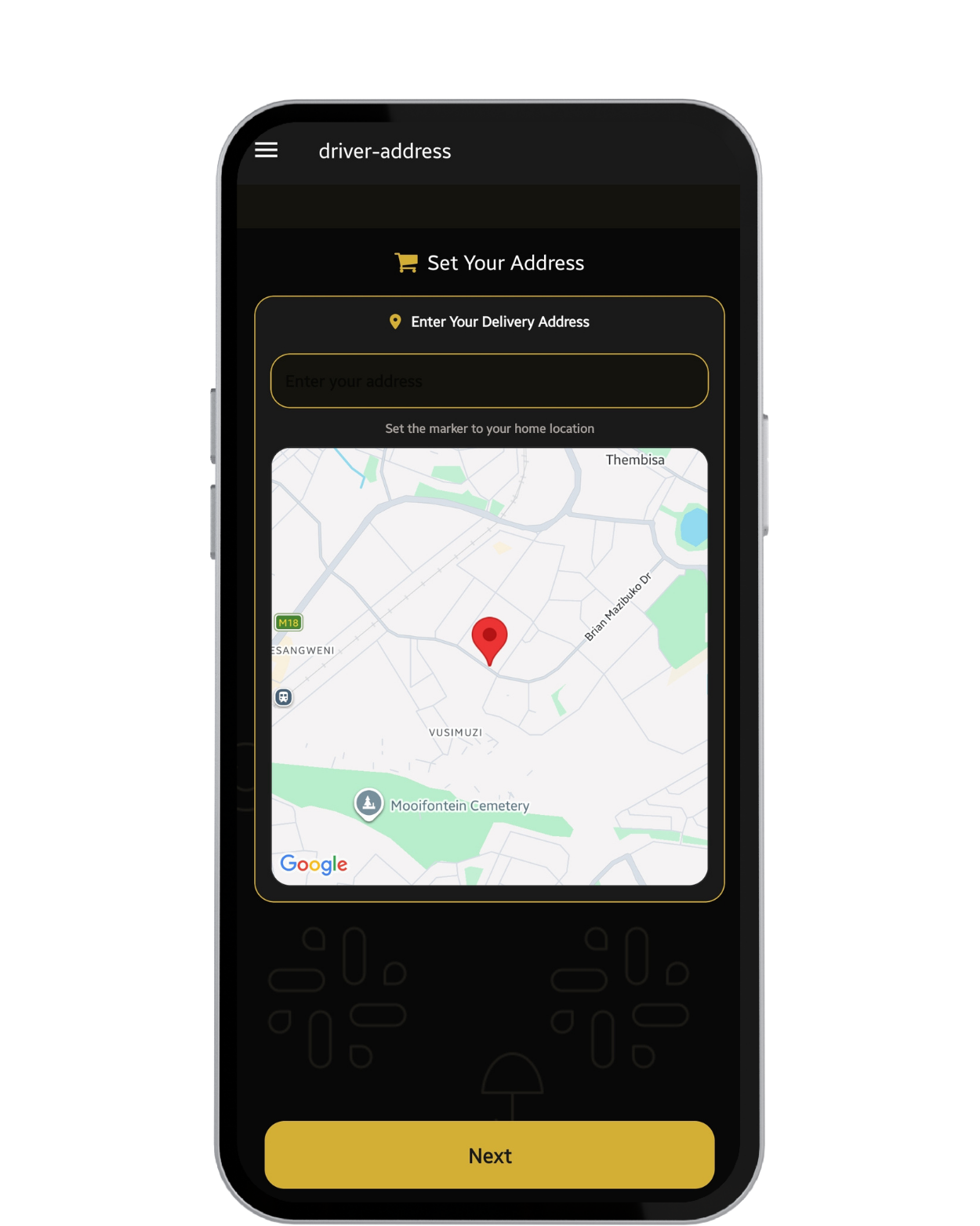
Driver should provide their Physical Address.
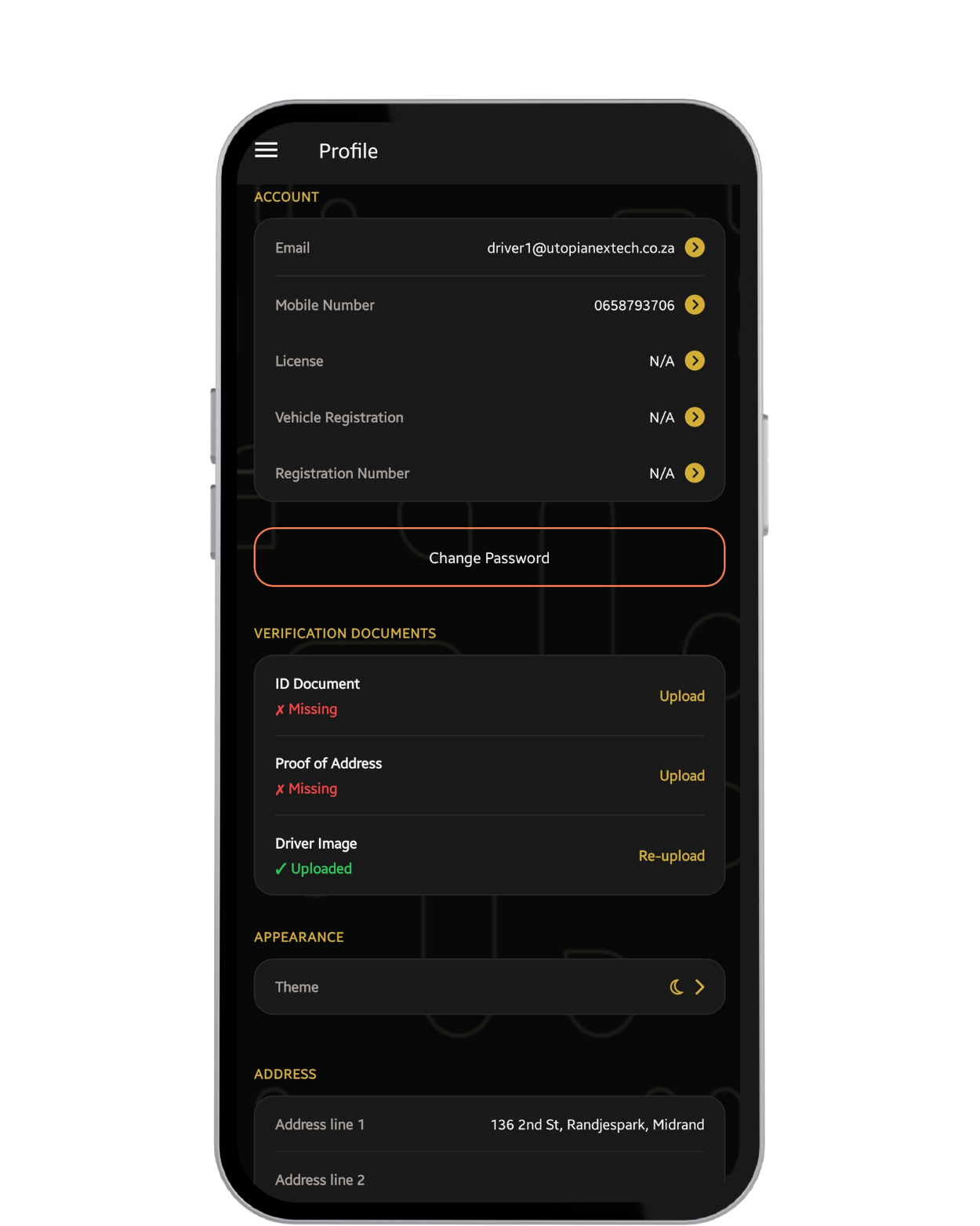
Drivers are Required to provide (Certified ID Copy, Motor Vehicle Registration, Valid Driver's License, & Proof of Address).
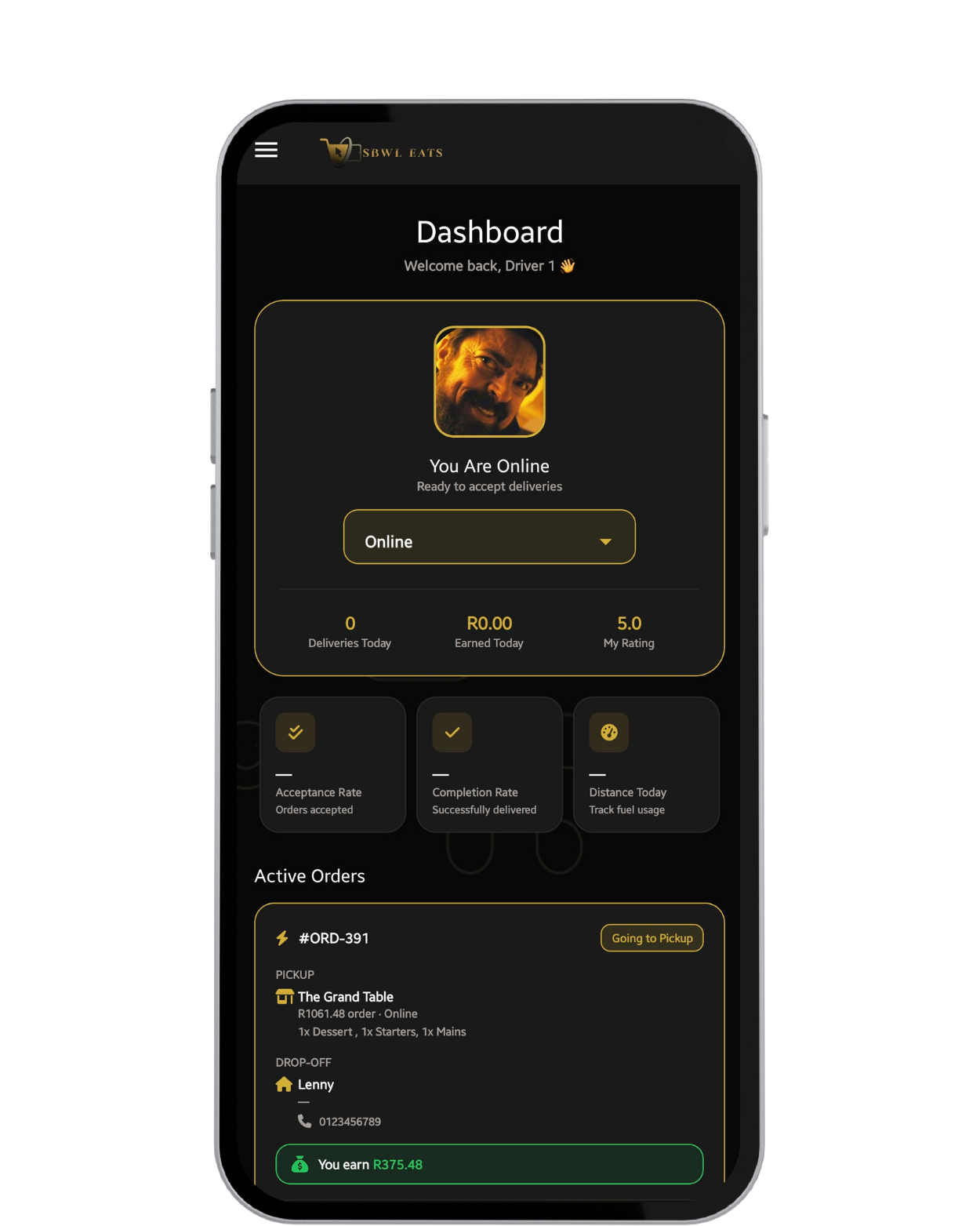
Dashboard includes shortcut nav, Driver Selfie & Status (Online & Offline). You can adjust all on dashboard.
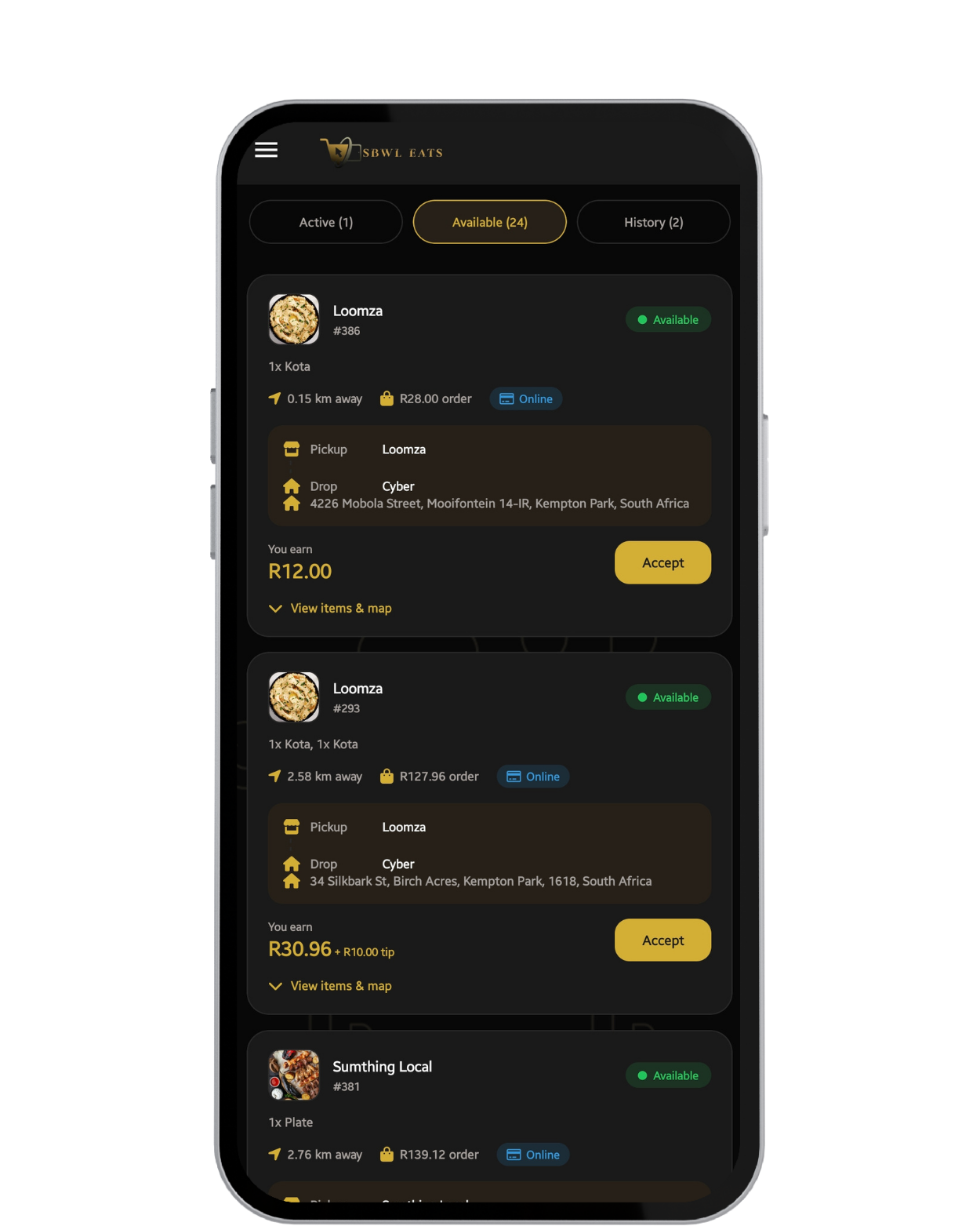
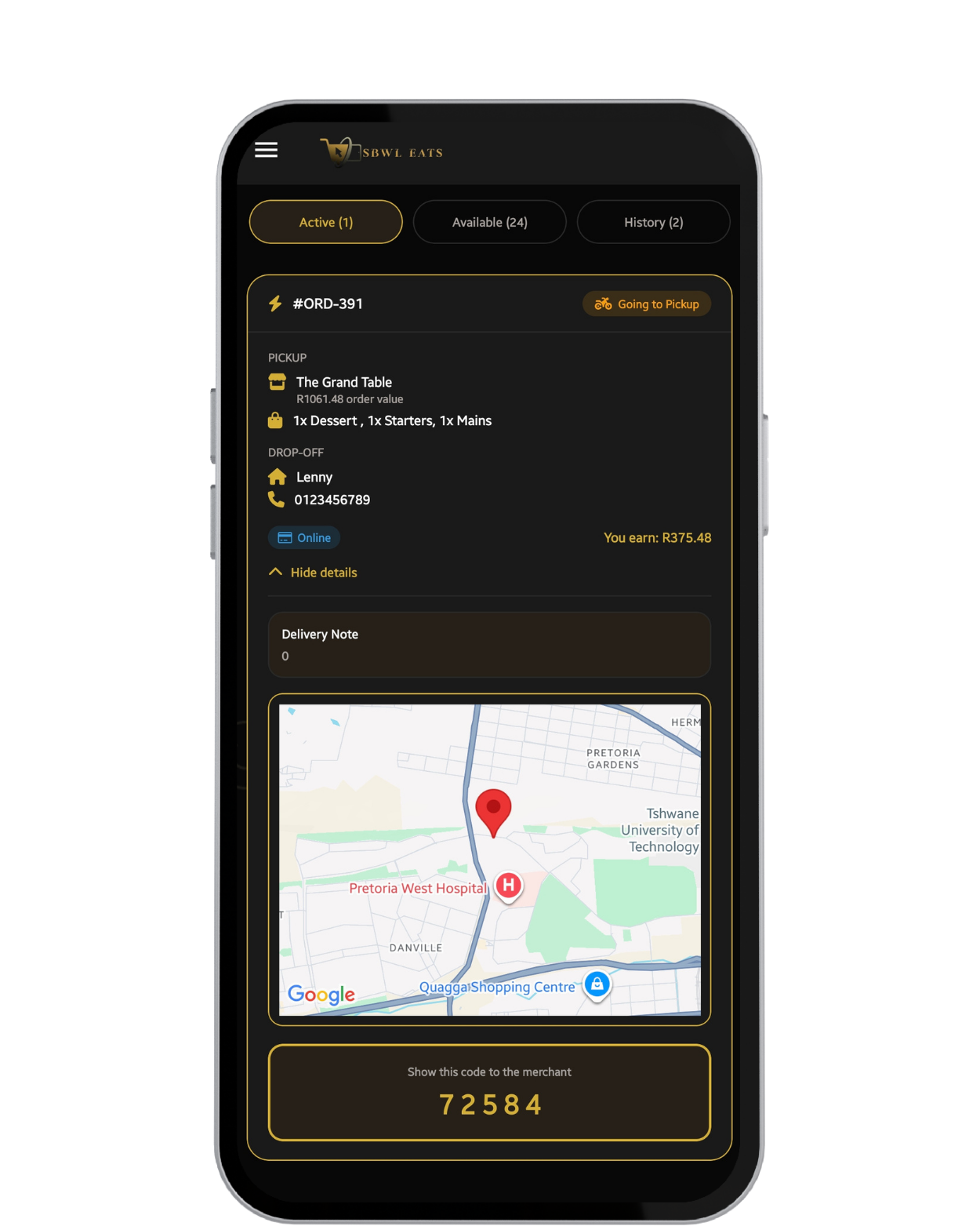
You will spend more time one the Orders page, all orders will be received here and adjusted here.
Delivers are available to all SBWLEats Driver, Orders include (Order Number, Distance, Shop Name, Payment Type & Price.
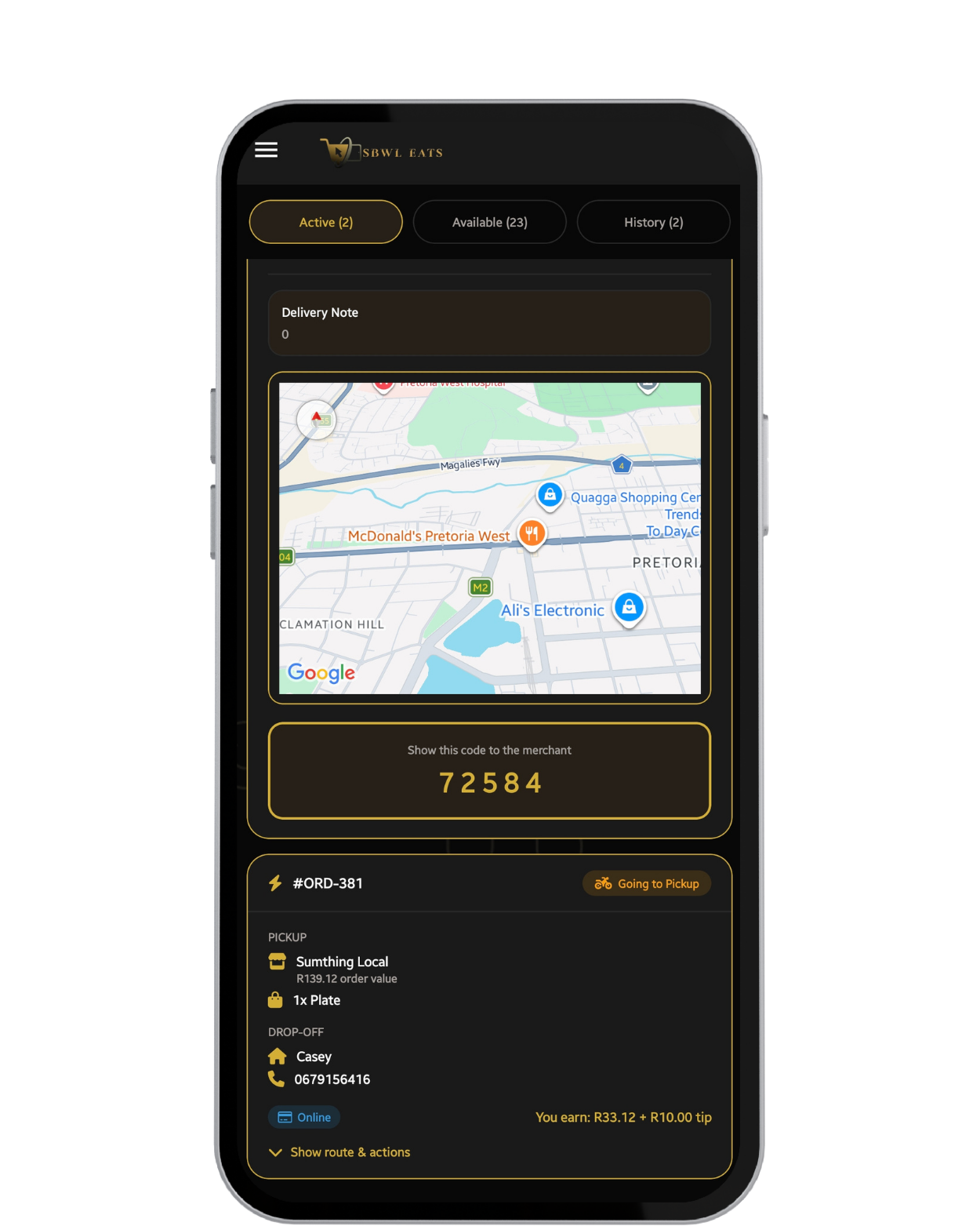
Shop will notify for collection; a code will be provided, and shop will Require. Set Estimation Time of Arrival.
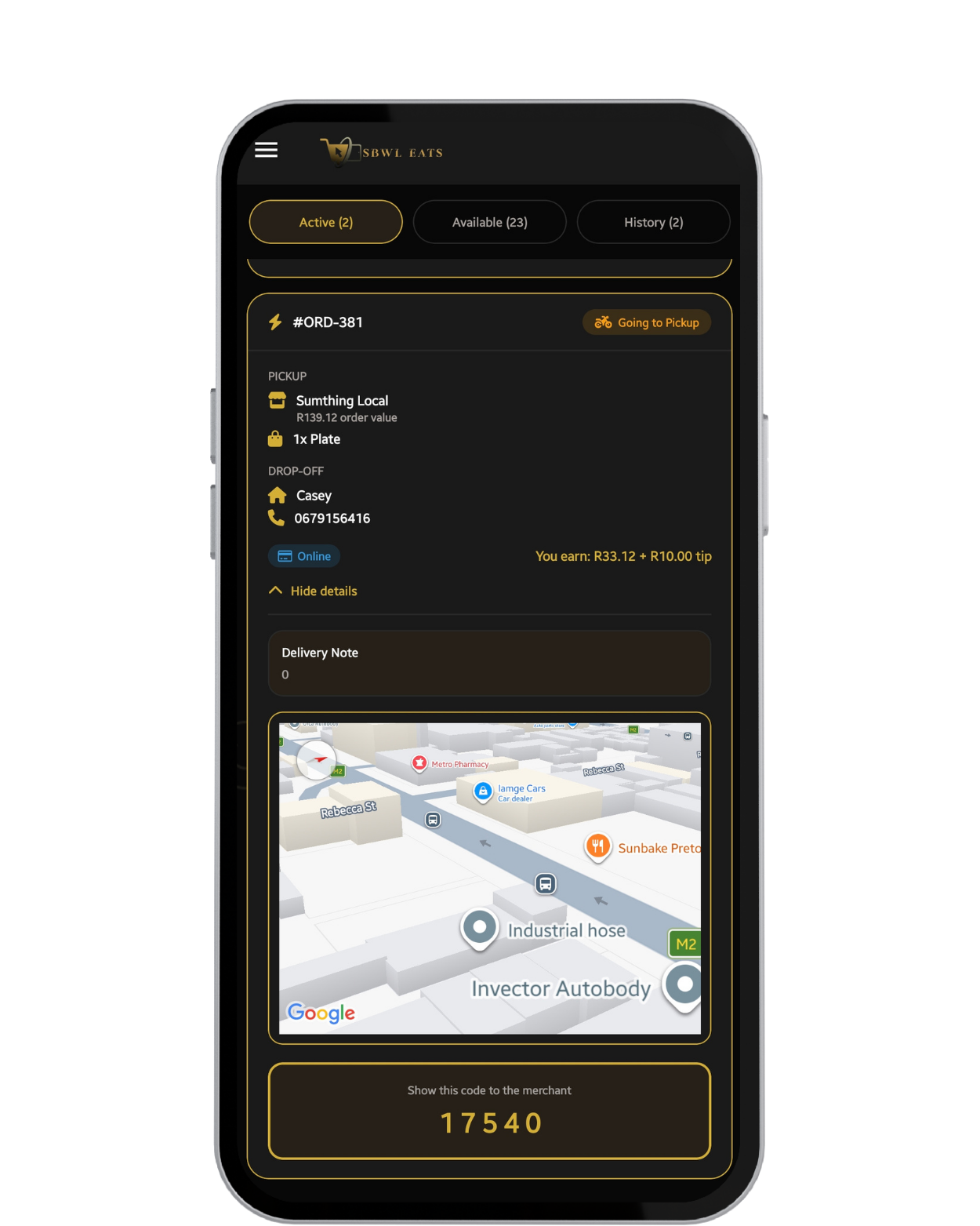
Use Map to see shops with more delivery orders. Indicators will be (Grey, Orange, & Red) Less to Busy. Driver closer to Area receives orders faster than further driver.
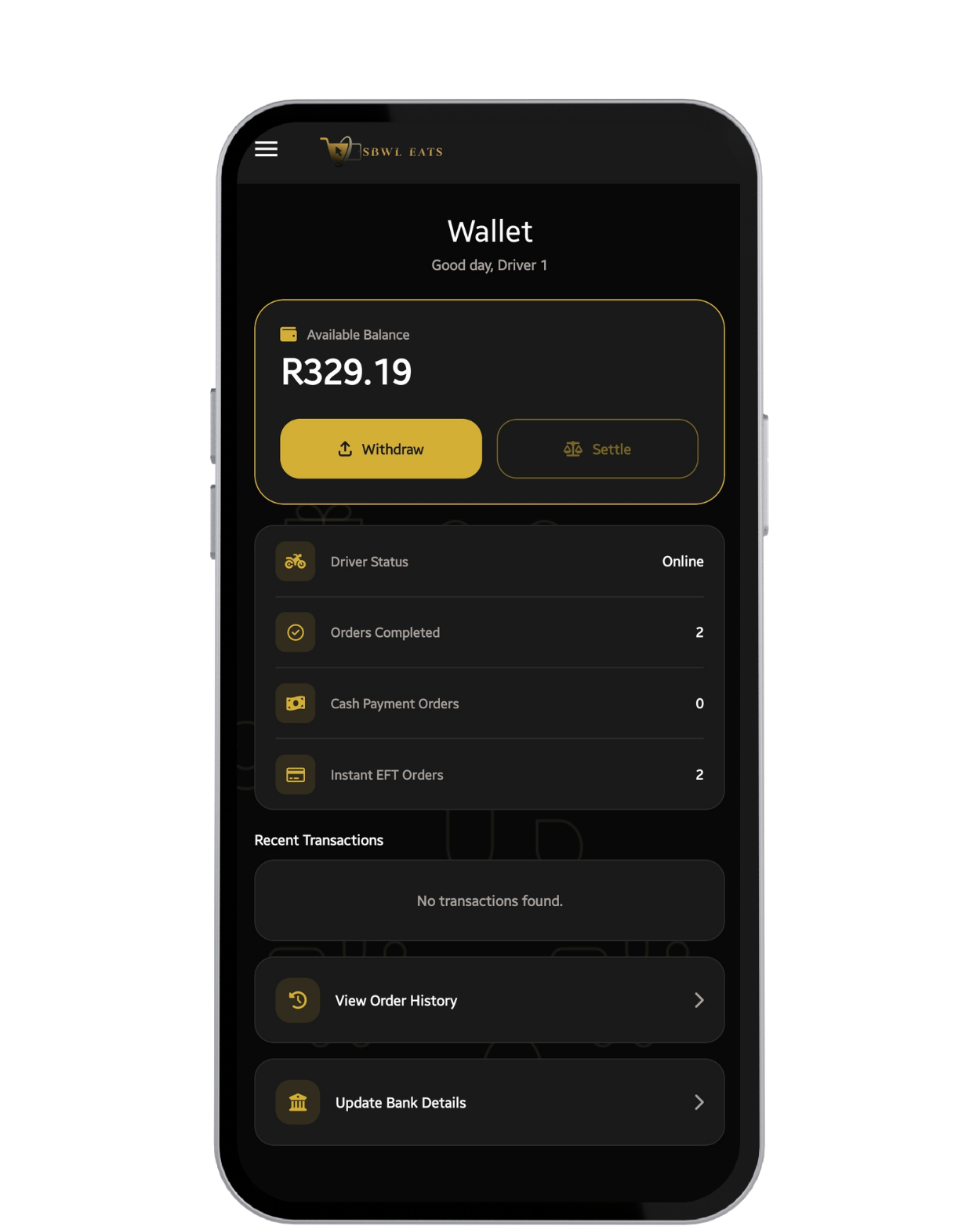
You can track trips, tips, number of orders completed & revenue made. You can withdraw funds at Anytime.